Context
This documentation explains how to create a user profile directly from the Pterodactyl admin panel installed on your VPS. This workflow allows you to manage global access points, set up accounts for your technical team, and assign administrative or basic access permissions.
1. Access the Admin Panel
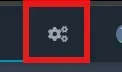
Log in to your Pterodactyl panel dashboard. Access the global management interface by clicking on the gear icon (Admin Control) located in the top right corner of the screen.
2. Navigate to the Users Section
Inside the administrative left sidebar layout:
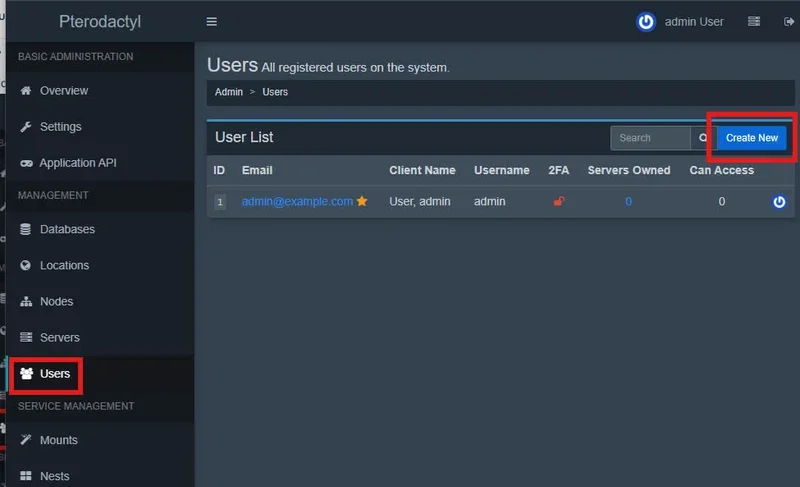
- Click on the
section tab.Users - Click the
button at the top right corner to open the creation form.Create New
3. Complete the Form
Fill out the user creation form fields with the required information:
- Enter the user's email address, unique
, first name, and last name.Username - Check the
box if you need to grant full root administrative privileges over the VPS Pterodactyl instance.Administrator
A user designated as an administrator will gain absolute access to all servers, nodes, and configurations across your panel. Only assign this role to individuals who carry absolute professional trust.
- Set a secure, strong password in the dedicated input field.
Click the blue
Create User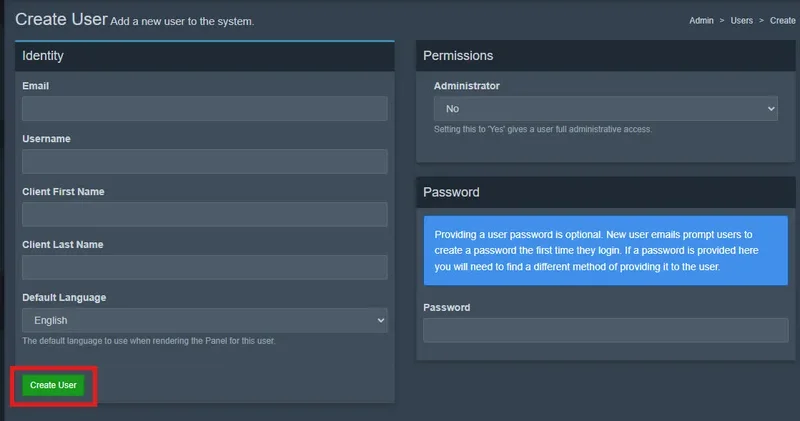
By default, Pterodactyl does not automatically dispatch a confirmation email to the user upon creation. You must manually send them their login credentials (email and initial password) so they can successfully authenticate on your panel dashboard.
Troubleshooting
❌ "The email has already been taken" or "Username already exists" error
- Duplicate Account Entry: The email address or username you entered is already registered in the panel database. Use the search bar within the
section to locate the existing profile and adjust its settings rather than generating a new entry.Users
❌ User cannot log in to the VPS panel dashboard
- Typo or Hidden Trailing Spaces: When manually copying and transmitting account credentials, a hidden space character might have been included. Reset the user's password from their admin profile sheet by clicking on their entry to supply a clean new key passphrase.
❌ The form rejects password validation
- System Security Requirements: Pterodactyl rejects weak or short password keys due to obvious access security standards. Ensure you generate a robust password string mixing uppercase letters, lowercase letters, numerical values, and special characters.
Administrative Best Practices
- Prioritize Sub-users Mapping: If an individual only requires access to manage a specific game instance (booting up, shutting down, accessing files), do not create a global account in the admin panel. Navigate straight to the specific server dashboard, open its local
tab, and invite them as a sub-user with only the explicit permissions needed.Users - Principle of Least Privilege: Never check the global
box out of convenience or to speed things up for temporary staff. A compromised or malicious admin account can completely wipe or corrupt your VPS containers in a single click.Administrator - Enforce Two-Factor Authentication (2FA): Strongly encourage (or enforce via global panel parameters) the activation of two-factor authentication across all active accounts, specifically targeting profiles holding high-level administrative access.
Need help?
Managing access parameters and configuring permissions protocols on an infrastructure panel demands strict operational diligence to protect your VPS environment.
If you hit a roadblock while configuring a profile or have questions about permission routing layouts, our engineering team is here to support you. Open a technical support ticket from your client area account profile over at billing.winheberg.com to receive dedicated advice.
Your new user account is now fully operational and ready to log in! 🎮