Context
Eggs allow you to add new games or specific applications to your Pterodactyl panel.
Each Egg contains all the configuration files and parameters required to automatically deploy an instance with the correct startup settings, variables, and automated installation scripts.
1. Find the Required Eggs
Go to the official repository for Pterodactyl Eggs:
This directory contains a massive collection of community-maintained Eggs for:
- Games (game servers, proxies)
- Applications (databases, bots, administrative tools)
- Programming Languages (runtime environments)
You can easily look for an Egg matching your specific needs using the website's search bar. Downloaded elements come as a single configuration file format:
.json2. Access the Admin Panel
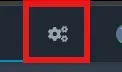
Log in to the global management interface of your infrastructure. Open your administrative dashboard by clicking on the gear icon located at the top right corner of the screen.
3. Open Service Management
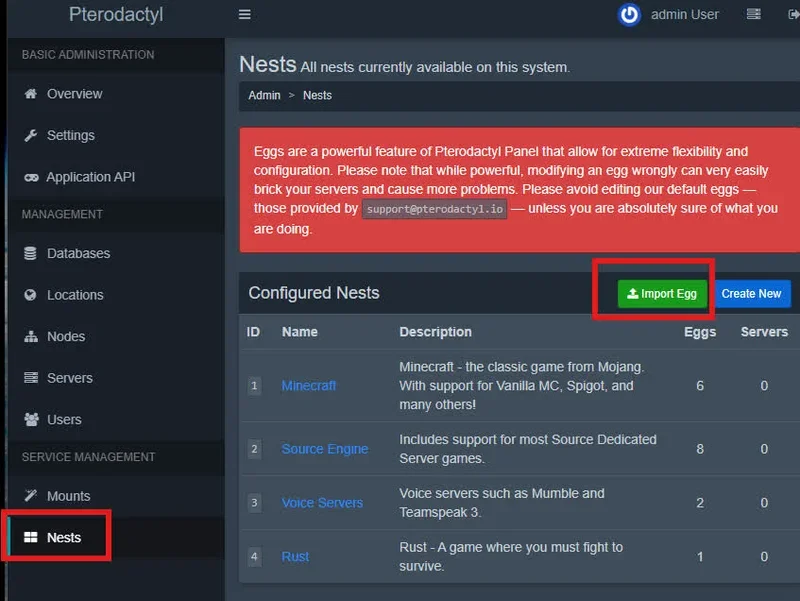
Inside the left sidebar of the administration control area, locate the service management section:
- Scroll down to the
option and click it.Nests - At the top right of the Nest management panel, click the
button.Import Egg
4. Import an Egg
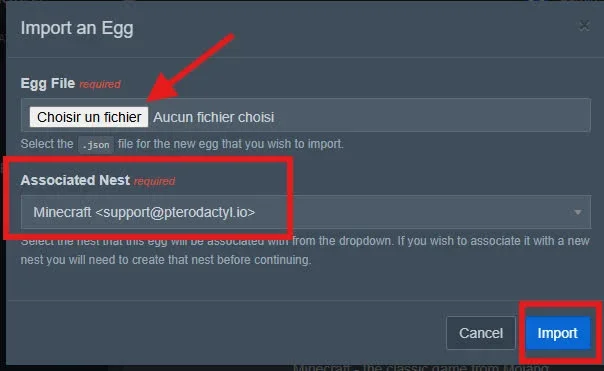
Inside the importation overlay menu:
- Click the file selector and upload the downloaded
Egg configuration file..json - In the
drop-down field, pick the corresponding parent category (e.g., Minecraft, Source Engine, Voice Servers, etc.).Associated Nest
The associated Nest is purely meant to classify and structure your different Eggs so you can find them easily when creating a new instance.
5. Finalize the Import
Click the blue
ImportThe panel will process and register the configuration data. Your brand new Egg is now fully available to build or edit game servers.
Troubleshooting
❌ "Validation Failed" error during import
- Corrupted or Outdated JSON File: This issue usually happens if the
file structure is broken, incomplete, or coded for an obsolete Pterodactyl version. Re-download the file from the official source repository..json - Unique Identifier Conflict: If the dashboard states that the Egg already exists, the UUID hardcoded within the file is already assigned to another active Egg on your setup.
❌ Server remains stuck on the "Installing" phase
- Broken Installation Script: The build script bundled inside the Egg might point to remote asset links that are no longer online. Check the
tab of the Egg settings to check the external setup URLs.Install Script
❌ Server crashes instantly right after creation
- Missing Core Startup Variables: A few custom community-made Eggs strictly require custom API keys or specific software versions defined within the server variables tab. Ensure all required fields are accurately filled during server creation.
Administrative Best Practices
- Docker Image Integrity: Always review the
path inside the Egg configuration. Only run Docker images pulling from official repositories or trusted verified creators to prevent any security vulnerabilities on your nodes.Docker Images - Update Schedules: Game requirements change frequently. Remember to periodically check the official repository to see if a newer iteration of your Egg is available to update installation routines and startup variables.
- Nest Organization: Keep your panel structured. Take the time to build dedicated, distinct Nests if you are importing custom developer builds or unique tools to maintain a clean indexing hierarchy.
Need help?
Importing and customizing advanced custom Eggs requires a solid understanding of Docker structures and environment variables.
If your Egg setup fails or causes runtime issues on your instances, our technical engineering team is ready to guide you. Open a technical support ticket from your billing area over at billing.winheberg.com to get custom assistance.
Your new Egg is now fully operational and ready for your deployments! 🎮