Context
Port allocations in Pterodactyl allow you to make your game instances accessible to the public Internet.
Every single game or application requires distinct network ports to function properly. Assigning the right ports guarantees that external services and players can reach your instance without experiencing connection errors.
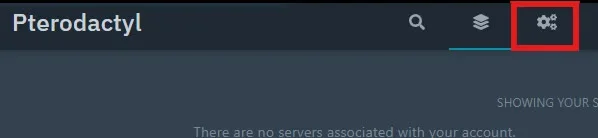
1. Log In to the Admin Panel
Log in to the global infrastructure management dashboard. Open your Pterodactyl admin interface.
2. Navigate to Nodes
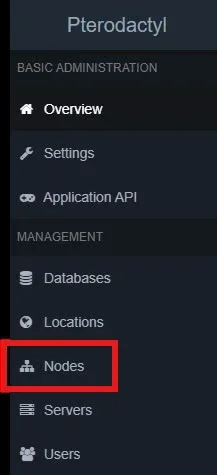
Inside the administrative left sidebar layout:
- Click on the
section tab.Nodes - Select the specific node hardware where your target instance is running.
3. Open the Allocation Section
Once inside the specific node settings interface, select the
Allocation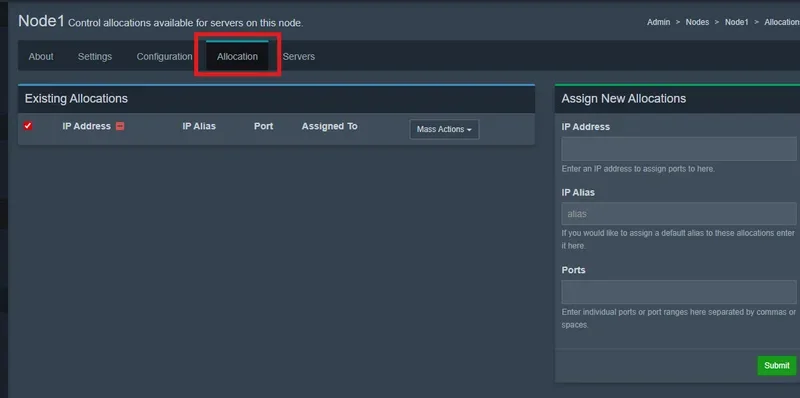
4. Assign New Allocations
Locate the
Assign New Allocations- In the
input field, type your machine or VPS public IP address.IP Address - In the
field, you can safely leave it blank.IP Alias - In the
box, fill in the network port settings you need to expose.Ports
You can declare:
- A single isolated port entry
Example:19132 - A continuous, comprehensive range of multiple ports
Example:19132-19139
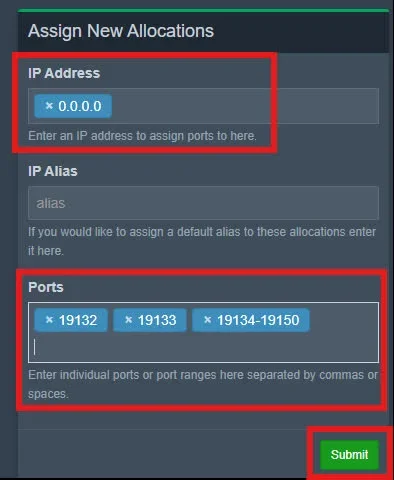
5. Submit Ports
Click the green
SubmitPort Reference Table for Popular Games
| Game | Ports to Open |
|---|---|
| Palworld | SERVER_PORT: 8211, RCON_PORT: 25575 |
| Valheim | SERVER_PORT: 2456 |
| Call of Duty | SERVER_PORT: 4979 |
| Satisfactory | SERVER_PORT: 7777, RELIABLE_PORT: 8888 |
| Rust | SERVER_PORT: 28015, RCON_PORT: 28016, QUERY_PORT: 27015, APP_PORT: 28082 |
| Ark Evolved | SERVER_PORT: 7777, PORT: 7778, QUERY_PORT: 27015, RCON_PORT: 27050 |
| BeamMP | SERVER_PORT: 30814 |
| Sons of the Forest | SERVER_PORT: 8766, RCON_PORT: 27015, QUERY_PORT: 27016 |
| Nova-Life | SERVER_PORT: 7777, STEAM_PORT: 25575, QUERY_PORT: 27015 |
| Garry's Mod | SERVER_PORT: 27015 |
| Unturned | SERVER_PORT: 27015, STEAM_PORT: 27016 |
| Factorio | SERVER_PORT: 34197 |
| Enshrouded | SERVER_PORT: 15636, QUERY_PORT: 15637 |
| Project Zomboid | SERVER_PORT: 16261, STEAM_PORT: 16262 |
| Ark Survival Ascended | SERVER_PORT: 7777, PORT: 7778, QUERY_PORT: 27015, RCON_PORT: 37015 |
| Minecraft Bedrock | SERVER_PORT: 19132 |
| Minecraft Java | SERVER_PORT: 25565 |
| Minecraft Proxy | SERVER_PORT: 25565 |
| FiveM | SERVER_PORT: 30120, TXADMIN_PORT: 40120 |
| RedM | SERVER_PORT: 30120, TXADMIN_PORT: 40120 |
| Discord Bot | SERVER_PORT: 10000 |
Make sure that the ports attached here strictly line up with the parameters defined in your startup layout arguments or your internal game config text files to prevent binding failures.
Troubleshooting
❌ The port is assigned but the server remains unreachable
- Game instance stopped or crashed: Winheberg's network infrastructure allows all traffic through by default, and Pterodactyl automatically handles dynamic port mapping via Docker containers. If a port appears closed, it almost always means the game application process isn't active or has crashed on boot. Check your live console logs immediately.
- Internal Configuration Mismatch: Verify that the port declared inside the game's internal configuration files (e.g.,
) or within the startup variables tab strictly matches the primary port allocated in Pterodactyl.server.properties - User-configured Local Firewall: No network blocking is applied upstream on our network layer. However, if you have manually installed and configured a custom firewall framework (such as UFW or iptables) inside your own operating system environment, ensure it does not discard Docker's internal routing paths.
❌ Unable to save allocation, returns "Allocation already exists" error
- Duplicate Entry: This message simply indicates that the specified port is already bound to another server instance on the exact same Node IP address. Use the allocation search filter to find which active container is using it.
Administrative Best Practices
- Isolate Sensitive Access Vectors: Avoid assigning public ports pointing to backend database engines or open RCON systems to third-party team members unless explicitly needed. Frequently change passwords tied to these administrative service daemons.
- Rely on Linear Continuous Ranges: When orchestrating multi-instance network models (such as complex proxy setups via BungeeCord or Velocity), build structured allocation intervals (e.g., 25500-25600) to keep container tracking and asset mapping clear.
- Validate Egg Schema Variables: Whenever you switch an active default allocation link from the user interface "Network" segment panel, verify that the corresponding internal binding variable under the "Startup" parameter panel has matched successfully.
Need help?
Network allocation management and routing adjustments over Docker-driven environments like Pterodactyl demand precise server configuration practices.
If connections fail to establish or traffic drops despite valid allocations, our technical engineering team is standing by. Open a support ticket from your client area account profile over at billing.winheberg.com to receive a customized diagnostic overview.
Your game server is now fully equipped with all the required networking fields to welcome your community players! 🎮