Context
You manage a PocketMine server at WinHeberg and want to upgrade it to a more recent version? Whether it's to benefit from the latest bug fixes, to follow a Minecraft Bedrock update, to test a new feature, or because your players see a compatibility error message since Microsoft updated Minecraft Bedrock, the update is done in one click from your gaming panel.
This guide walks you through how to change the version of your PocketMine server, and what to do in case of incompatibility with a recent Minecraft Bedrock update from Microsoft.
How to know if your server needs an update?
PocketMine is friendly with you. As soon as a new version is available, the server displays a warning message in the console at startup. If you see this kind of log appearing, it's time to take action.
[20:39:55.558] [Server thread/WARNING]: [Update Checker] Your version of PocketMine-MP is out of date. Version 5.43.1 was released on Sat May 9 05:41:51 2026
[20:39:55.558] [Server thread/WARNING]: [Update Checker] Details: https://github.com/pmmp/PocketMine-MP/releases/tag/5.43.1
[20:39:55.558] [Server thread/WARNING]: [Update Checker] Download: https://github.com/pmmp/PocketMine-MP/releases/download/5.43.1/PocketMine-MP.phar
The message directly tells you the new version number available (here 5.43.1), the release date, and a link to the release notes on GitHub. As long as you don't update, this warning will appear at every server startup.
Regularly check your server console. If you see this Update Checker warning, take a few minutes to follow the procedure below. It will save you from running on an outdated version potentially containing bugs that have since been fixed.
Why update your PocketMine server?
PocketMine evolves regularly to follow Minecraft Bedrock updates and fix bugs reported by the community. Updating your server allows you to.
- Benefit from the latest fixes for bugs and security
- Stay compatible with new Minecraft Bedrock clients (which auto-update on mobile/console)
- Take advantage of new features and performance optimizations
- Avoid version errors shown to players trying to connect
When Microsoft releases a new version of Minecraft Bedrock, PocketMine isn't always compatible right away. The PocketMine developers first have to adapt the code to the new protocol version, which can take a few days to a few weeks. During this period, your players with an up-to-date client won't be able to connect to your server until you update PocketMine.
Prerequisites
Before getting started, make sure you have the following.
- An active PocketMine server on your WinHeberg gaming panel
- A recent backup of your server (recommended in case of post-update issues)
- A few minutes ahead of you, ideally during off-peak hours so you don't disturb your players
A major update can break some plugins that haven't been updated by their authors. Before switching to a major version (for example from 5.42 to 5.43), check the compatibility of your essential plugins.
1. Stop your server
Before changing the version, your server must be completely stopped.
- Log in to your WinHeberg gaming panel
- Select your PocketMine server
- On the main page, click Stop if the server is running
- Wait for the status to switch to Offline
Don't try to change the version while the server is running, you could corrupt files or world data.
2. Access the Versions tab
WinHeberg provides a dedicated tab to manage the version of your PocketMine server.
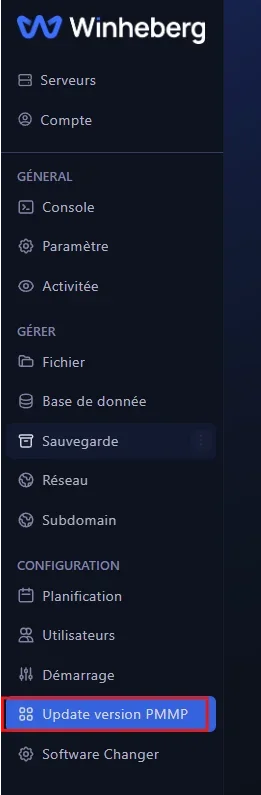
- In the left side menu of your server, click Update version PMMP (Configuration section)
- You'll arrive on a page listing all the official PocketMine versions available
3. Choose and install the desired version
The Versions tab displays the list of all official PocketMine versions, from the most recent to the oldest.
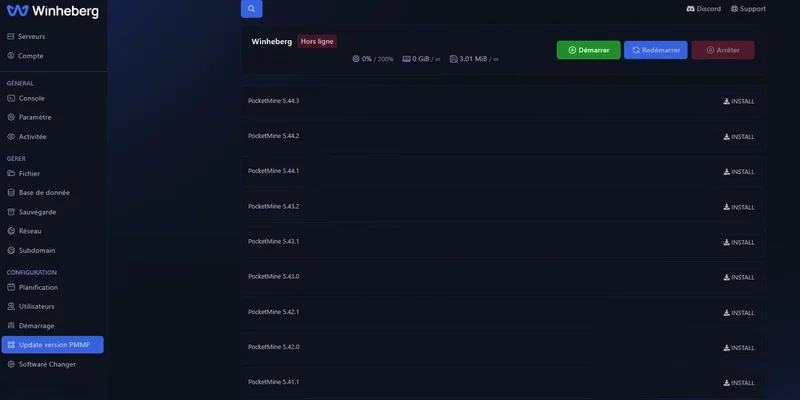
You'll see for example the following versions (the list is automatically updated by WinHeberg).
- PocketMine 5.44.3
- PocketMine 5.44.2
- PocketMine 5.44.1
- PocketMine 5.43.2
- PocketMine 5.43.1
- PocketMine 5.43.0
- PocketMine 5.42.1
- PocketMine 5.42.0
- And all earlier versions
To install a version.
- Locate the version you want (usually the most recent at the top of the list)
- Click the Install button to the right of the chosen version
- Wait a few seconds while the binary is downloaded and installed
If you're hesitating about which version to choose, take the most recent available, it's almost always the right choice. An older version is only relevant if you specifically know that one of your plugins doesn't work with recent versions.
4. Restart your server
Once the new version is installed, you can restart your server.
- Go back to the main page of your server
- Click Start
- Watch the console to verify that startup runs without errors
You should see in the logs a message confirming the new version of PocketMine at startup, for example This server is running PocketMine-MP version 5.43.1.
Why does WinHeberg only offer official versions?
You may have heard of community PocketMine binaries or unofficial forks that sometimes provide versions adapted to new Bedrock releases faster than the official version. At WinHeberg, we only offer official binaries published by the PocketMine development team, and for a simple reason, the security of your servers and your players.
The risks of unofficial binaries
Unofficial PocketMine binaries can contain.
- Hidden malicious code (backdoors, player data theft, etc.)
- Unaudited modifications that introduce vulnerabilities
- Hidden features that can compromise your server integrity
Since PocketMine is an open-source project, anyone can download the source code, modify it, and redistribute a compiled binary. Without code auditing, it's impossible to guarantee that a community binary doesn't contain an unpleasant surprise.
We know this choice can be frustrating during a Bedrock update awaited by your players. However, security comes before speed, and a compromised server does far more harm to your community than a few days of delay waiting for the official version.
Troubleshooting
Here are the most common errors during a PocketMine update.
❌ Minecraft Bedrock version error (clients can no longer connect)
If your players see a message like "Outdated server" or "Outdated client" when connecting.
- This is due to a protocol incompatibility between PocketMine and the Minecraft Bedrock client
- Outdated client means your players are on an older version than the one expected by the server, they need to update their game
- Outdated server means the opposite, your PocketMine server is too old compared to the client, you need to switch to a more recent version in the Versions tab
- If the official PocketMine version isn't yet available for the latest Bedrock version, you'll have to wait a few days for the PocketMine developers to publish an update
❌ A plugin no longer loads after the update
If one of your plugins refuses to launch in the console.
- Check on the Poggit page (the official PocketMine plugin repository) if a compatible version with your new PocketMine version is available
- If the plugin hasn't been updated by its author, you can either wait for an update, or revert to an earlier compatible PocketMine version
- Some critical plugins may justify staying on an older stable version while waiting for all your plugins to be updated
❌ The server no longer starts after the update
If the console shows errors at launch after the version change.
- Check the full logs to identify the exact error
- A major incompatibility between your
pocketmine.ymlor yourserver.propertiesand the new version may block startup, compare with the example files of the new version - As a last resort, go back to the previous version from the Versions tab and contact our support team
❌ My worlds or player data have disappeared
No panic, your worlds are not deleted during a version change.
- The version change only affects the PocketMine binary, not your data (worlds, plugins, configurations)
- Check via SFTP or the file manager that your
worlds/andplugin_data/folders are still present - If something really has disappeared, restore the backup you made before the update
Best practices
A few recommendations to manage your PocketMine updates safely.
- Back up your server before each update, especially when switching to a major version
- Test first on a test server if you have many critical plugins, rather than updating your production server directly
- Follow PocketMine news on their official GitHub and Discord to anticipate important updates
- Notify your players in advance of a version change, especially if a few minutes of downtime is expected
- Document which version you use so you can easily roll back if needed
- Don't force an immediate update after a Bedrock release, wait a few days for the official PocketMine version to stabilize
Need help?
If you can't update your server, if an essential plugin no longer works after the update, or if you encounter a console error, feel free to contact our support team and include the server startup logs.
Your PocketMine server is now up to date, ready to welcome your players on the latest version 🎮.