Contexte
Managing a Minecraft Bedrock server (BDS - Bedrock Dedicated Server) on the Winheberg infrastructure requires keeping your instance aligned with official Microsoft updates. Since game clients (PC, mobile, consoles) apply updates automatically, any version mismatch on your server will systematically cause a compatibility error when your players attempt to connect.
To simplify this transition, Winheberg includes an exclusive tool called Update version bedrock. This module allows you to instantly switch between all available Bedrock Dedicated Server versions, including experimental features and upcoming themed updates (game drops), directly from your management interface.
Why keep your Minecraft Bedrock server up to date?
- Ensure client compatibility: Prevent connection rejections for players whose applications update automatically.
- Deploy new features: Instantly integrate new blocks, creatures, biomes, and mechanics introduced by the developers.
- Secure your instance: Apply performance fixes and security vulnerability resolutions published by Microsoft.
- Eliminate authentication anomalies: Remove error messages related to outdated server network protocols.
Microsoft regularly releases minor fixes and interim content updates. We highly recommend monitoring the release schedule to anticipate your community's upgrade needs.
Prérequis
- An active and configured Minecraft Bedrock instance on your Winheberg game panel.
- A complete and recent backup of your game data (world folder), as backward compatibility issues remain possible during major updates.
- Schedule the operation during low-activity hours to minimize disruption to your users' gaming experience.
Upgrading or downgrading a binary version can alter your world's integrity if the data structure changes. Do not skip the backup process under any circumstances.
1. Stop the game instance
Before initiating any modification to the server binaries, the instance must be fully stopped to prevent file corruption.
- Log in to your administration interface at panel.winheberg.com.
- Select your Minecraft Bedrock server from your services list.
- From the main page, click the Stop button.
- Wait until the status indicator displays Offline.
2. Access the Update version bedrock tool
Our infrastructure features a dedicated space for application version management.
- Navigate through the left side menu of your panel to the CONFIGURATION section.
- Click on the Update version bedrock option.
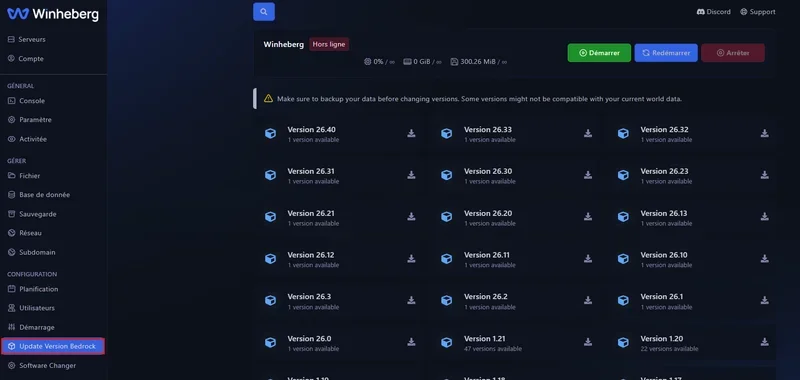
The interface displays all available Bedrock architectural versions, sorted by major iterations, along with the volume of associated interim revisions.
3. Select the target version
The indexed catalog covers both recent deployments and historical archives. You will notably find:
- Major production branches (e.g., Version 23.33, 26.32).
- Advanced or experimental revisions (e.g., Version 26.40).
To ensure optimal compatibility with the general public, always prioritize the most recent stable revision located at the top of the index.
- Identify the required version branch.
- Click the download icon located on the far right of the corresponding card.
4. Configure the sub-version and proceed with installation
A context window titled Select Minecraft Bedrock Version will appear on your screen.
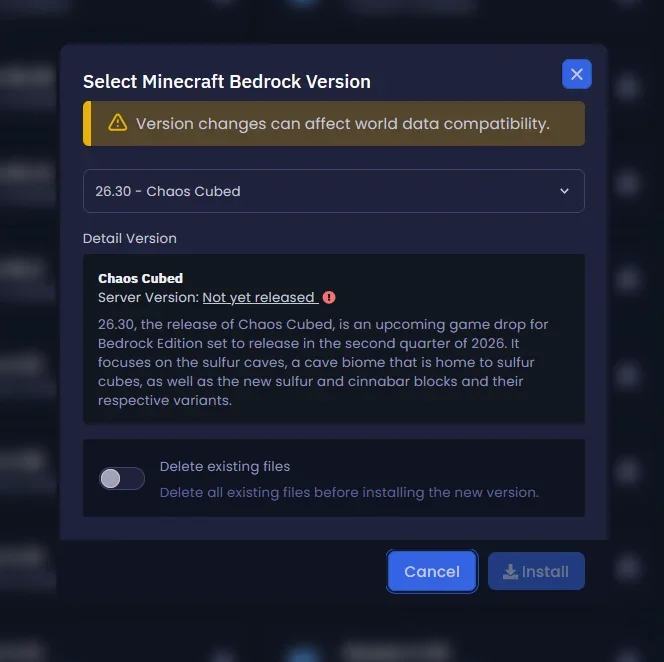
Take a moment to analyze the application parameters:
- Sub-version selector: Allows you to precisely define the target binary (e.g.,
26.30 - Chaos Cubed). - Detail Version: Displays version metadata, its official status (Released / Not yet released), and the associated changelog.
- Delete existing files option: Determines whether the directory should be wiped before deployment.
Enabling the Delete existing files option is irreversible. If enabled, it will wipe all your data, including configurations (server.properties), custom worlds, add-ons, and behavior packs. Make sure to keep this option OFF for a standard update.
The Not yet released labels indicate versions pre-indexed by our services following developer announcements. The binary becomes downloadable as soon as it is officially released by Microsoft.
To validate the operation:
- Choose the exact revision from the dropdown menu.
- Ensure the file deletion option is set to OFF.
- Click the Install button and wait for the infrastructure to download the files.
5. Restart the game server
Once the deployment is validated by the panel, the instance can be put back online.
- Return to your main console dashboard.
- Click the Start button.
- Monitor the console logs to confirm the new BDS binary initialization.
6. Audit and validation
Once initialization is complete, perform a quick quality control check on the instance:
- Connect to the server using your updated local Minecraft Bedrock client.
- Validate that your environment persists properly and check for any rendering anomalies.
- Test command responsiveness and ensure your extension packs run correctly.
Your infrastructure is now fully up to date 🎉.
En cas de problème
❌ Client error "Unable to connect to world"
- This is usually a version mismatch. Check the exact revision of your local Minecraft application and compare it with the active version on your panel.
- If the server version is newer than the client, force an application update via the player's app store (Microsoft Store, App Store, Google Play).
❌ Server initialization failure in the console
- Inspect the startup logs for deprecated variables within your
server.propertiesfile. New BDS versions occasionally modify the configuration options structure. - In case of a critical error, use the Update version bedrock tool to temporarily restore the previous binary while analyzing your configuration files.
❌ Add-ons or Behavior Packs malfunctioning
- Third-party modules rely heavily on Microsoft's scripting API. Check with your pack creators to see if a compatibility update is required for the new game version.
❌ Game world corruption or data loss
- Immediately restore the backup archive generated during the prerequisites step.
- Review Microsoft's release notes to check if transitioning between your two versions required an intermediate conversion step.
Bonnes pratiques
- Data Sanctuary: Never neglect creating a backup before a version update.
- Software Safety: Only toggle the Delete existing files option to ON if you are planning a complete reset of your server.
- Community Communication: Notify your users in advance about maintenance windows to avoid abrupt disconnections during active game sessions.
Besoin d'aide ?
If you encounter persistent difficulties aligning your version or if the instance refuses to start despite your verifications, our technical team is here to help. You can submit a technical support ticket from your client area at billing.winheberg.com by linking your Minecraft Bedrock product for fast assistance.