Context
Keeping a game server stable over time sometimes requires restarting it regularly. Memory builds up, some resources leak, and certain changes only take effect after a full restart. Rather than doing it manually, the Winheberg panel offers a scheduling system called Schedules, which lets you automate these actions at set intervals.
This guide explains how to set up an automatic restart CRON task from the Winheberg panel, with no command line or outside intervention needed.
What is a Schedule?
A Schedule is a scheduled task tied to your server in the panel. It relies on CRON syntax, a standard format for precisely defining when an action should run (every hour, every night at 3am, every Monday, etc.). Each Schedule can chain several actions in a specific order, with a delay between each one.
Prerequisites
You need an active server on the Winheberg panel and to be logged in with an account that has access to Schedule management.
If your account is a sub-user, check that the Schedules permission has been enabled by the server owner.
1. Access Schedules
Log in to the Winheberg panel, then select the relevant server.
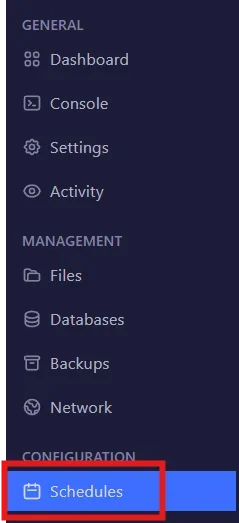
In the left side menu, click Schedules.
2. Create a Schedule
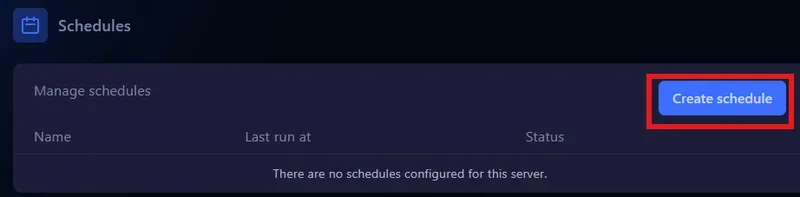
Click Create Schedule.
2.1 Name the task
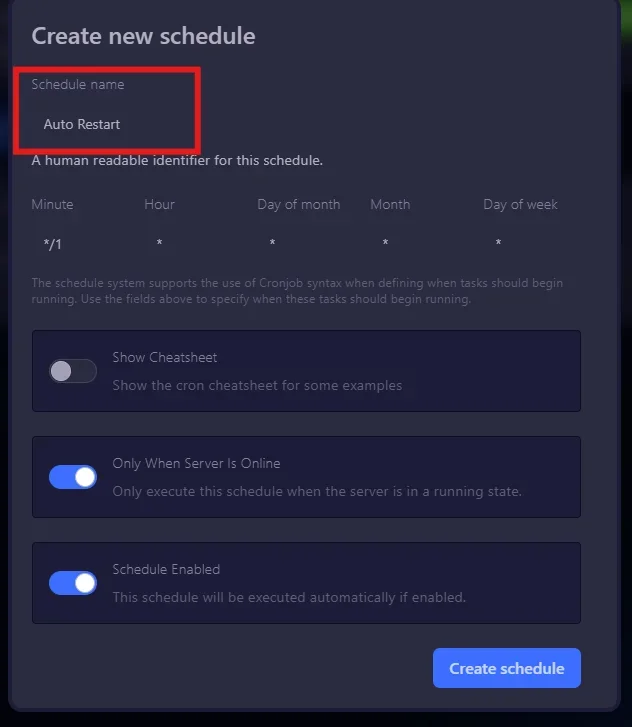
Give your Schedule a clear name, for example auto-restart. This name is purely for your own reference in the list.
2.2 Set the frequency
Next, enter the execution frequency in CRON format. This format is made up of five fields representing minutes, hours, day of the month, month, and day of the week, respectively.

The table below lists the most commonly used expressions.
| Frequency | CRON expression | Description |
|---|---|---|
| Every hour | 0 * * * * |
At the start of every hour |
| Every 2 hours | 0 */2 * * * |
Every 2 hours |
| Every night at 3am | 0 3 * * * |
Daily nightly restart |
| Every morning at 6am | 0 6 * * * |
Daily morning restart |
| Every Monday at 4am | 0 4 * * 1 |
Weekly task |
| Every 30 minutes | */30 * * * * |
Frequent restart |
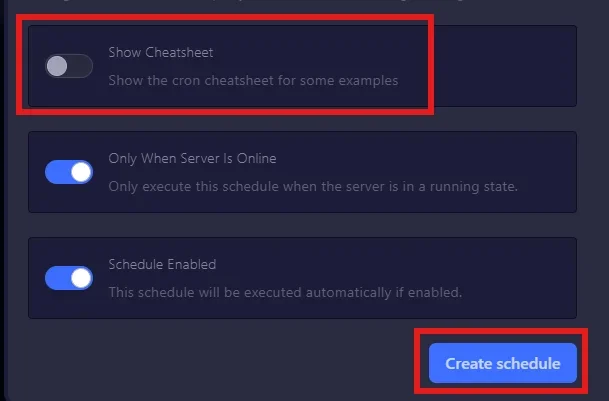
The Show Cheatsheet button in the panel displays a quick reference for CRON syntax if you're not familiar with this format.
2.3 Additional options
Two options are available before confirming.
Only when server is online runs the task only if the server is already started. This option is recommended to avoid an unnecessary restart if the server is already stopped.
Schedule enabled turns the task on or off. Leave it enabled so the Schedule starts working as soon as it's created.
Click Create Schedule to confirm.
3. Add the stop task
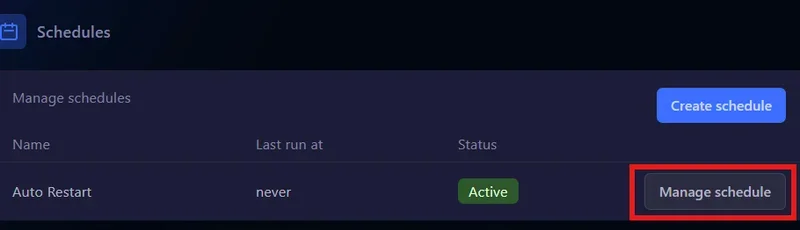
Once the Schedule is created, click Manage Schedule to access its tasks.
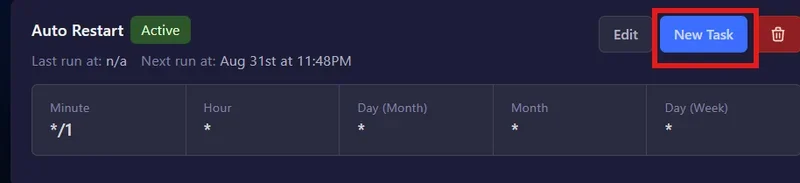
Click New Task to add the first action.
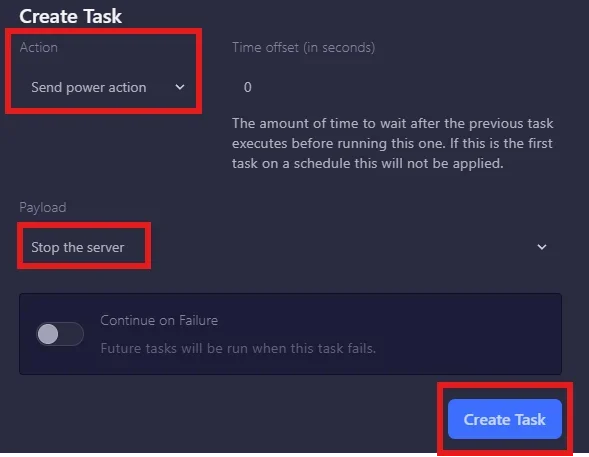
Set up the task with the following parameters.
| Field | Value |
|---|---|
| Action | Send power action |
| Time offset | 0 |
| Payload | Stop the server |
Click Create task.
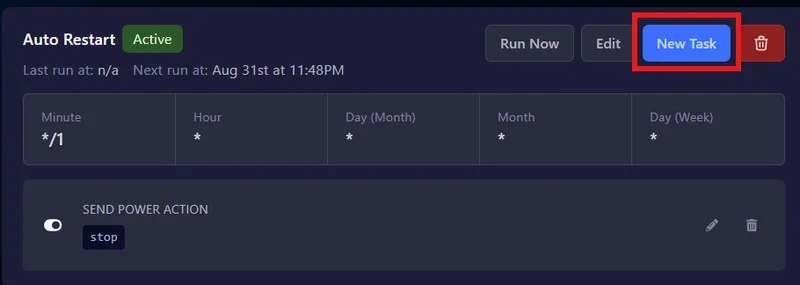
4. Add the start task
Add a second task via New Task.
Set up the task with the following parameters.
| Field | Value |
|---|---|
| Action | Send power action |
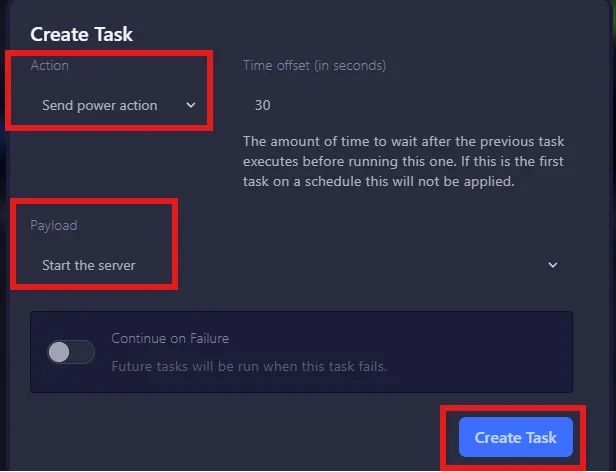
| Time offset | 30 |
| Payload | Start the server |
The 30-second offset gives the server enough time to shut down cleanly before the start is triggered. Click Create task to confirm.
Result
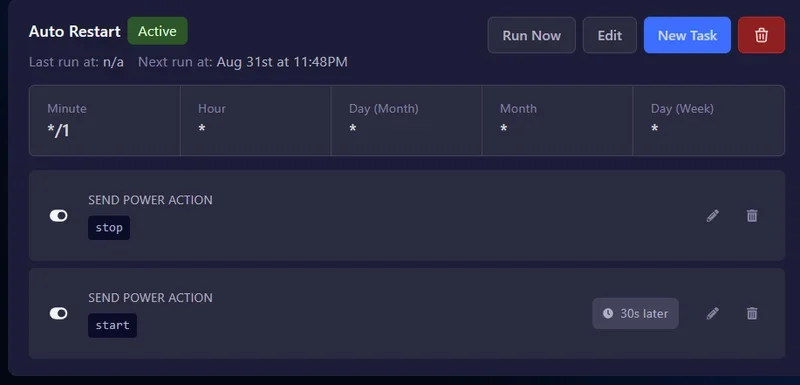
Your Schedule is now active. The server will stop and then restart automatically according to the frequency you set, with no action needed on your part.
If you run into trouble
❌ The Schedule is active but the server doesn't restart
- Check that Only when server is online isn't checked if your server was stopped at the time it was meant to run
❌ The server restarts immediately without stopping first
- The start task's Time offset is likely set to
0, change it to30to give the stop time to finish
❌ The Schedule doesn't run at all
- Check that Schedule enabled is turned on
- Check that the CRON expression is valid
❌ Access denied to Schedules
- If you're a sub-user, ask the server owner to enable the corresponding permission in the account settings
Best practices
- Pick a quiet restart time, ideally at night or early morning, to minimize the impact on connected players. A daily nightly restart at 4am or 5am is often a good compromise
- Avoid overly short intervals (every 5 or 10 minutes) unless you have a specific need, since it leaves players little time to reconnect and can disrupt the gaming experience
- Back up important data before restarting if your server holds inventories or progress. Some games offer a save command you can trigger with a Send command task added before the stop task
- Give each Schedule a clear name if you create several, this makes maintenance easier and avoids mixing up tasks
Need help?
If your Schedule doesn't trigger, if the server doesn't restart in the expected order, or if you're unsure about the CRON syntax to use, our team is here. Open a ticket in the Technical department from your client area, fill in the Related Product field with the server in question, and specify the Schedule's name along with the behavior you observed.
Your server is now set up to restart automatically, with no action needed on your part 🎮