Context
The Winheberg gaming panel lets you add sub-users to share access to your server with other people, for example a co-admin, a developer, or a moderator. Each sub-user can have specific permissions based on the access you want to grant them, letting you delegate certain tasks without giving full control over your server.
It's the ideal solution for handing off server management to your team without ever sharing your account's main password.
Only grant each user the permissions they actually need. Someone with elevated permissions can modify or delete important parts of your server, or even make it inaccessible.
Prerequisites
Before you start, make sure you have the following.
- An active gaming server on your Winheberg panel (FiveM, BeamMP, Minecraft, etc.)
- The email address of the person you want to invite
- A clear idea of the permissions you want to grant them
1. Access the gaming panel
Log in to your Winheberg gaming panel by going to panel.winheberg.com with your usual credentials.
2. Choose your server
Select the gaming server you want to add a sub-user to from your list of servers.
3. Open user management
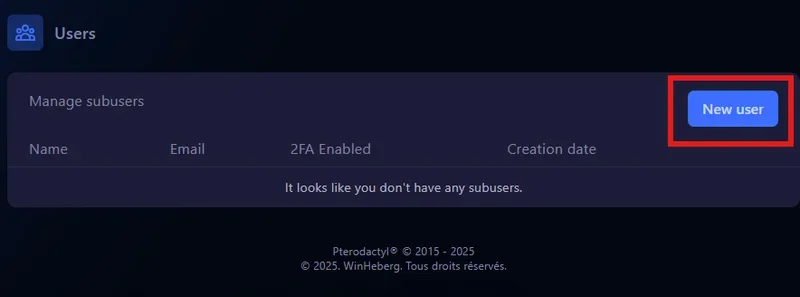
In the left side menu, scroll down to the Configuration section, then click Users.
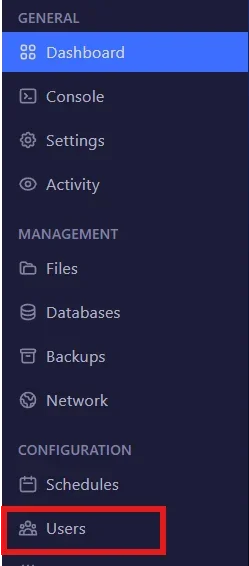
4. Add a new user
On the user management page, click the New User button.
5. Fill in the invitation form
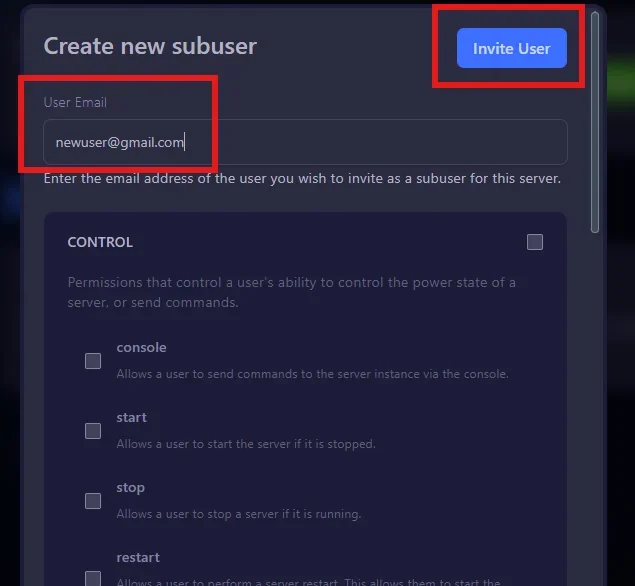
A window opens to set up the new user. You need to fill in three things.
- The email address of the person to invite
- The permissions you want to grant them (check only the ones they need)
- Confirm by clicking Invite User
Don't give every permission to just anyone. Winheberg can't be held responsible for mistakes or data loss caused by a sub-user you granted too many rights.
6. Invitation and user access
Once the invitation is sent, the person automatically receives an email with an invitation link. By clicking this link, they can go straight to.
- Creating their Winheberg account through the invitation link (if they don't already have one)
- Setting their own password
- Accessing the panel with the permissions you assigned them
The sub-user will only have access to the features you checked, and won't be able to do anything beyond those permissions.
If the person doesn't receive the invitation email, ask them to check their spam or junk folder. Also double-check that you entered their email address correctly, with no typo.
Understanding permissions
Permissions are grouped by category (console, files, database, backups, settings, etc.). Here are a few indicative examples of how to assign them based on the person's role, to adapt to the actual checkboxes available in your form.
| Role | Assignment logic |
|---|---|
| Moderator | Console access to restart the server, no access to files or settings |
| Developer | Access to files and the database, no access to critical settings or user management |
| Trusted co-admin | Broad permissions, but think carefully before granting full access |
Avoid granting permissions related to deleting server files or managing other users except to someone you fully trust. These permissions can cause irreversible damage.
If you run into trouble
❌ The invited person doesn't receive the email
- Check the invited person's spam or junk folder
- Confirm the email address entered is correct, with no typo
- Resend the invitation from the Users page if needed
❌ The granted permissions don't seem to apply
- Ask the sub-user to log out and back in to the panel to refresh their permissions
- Check on the Users page that the checkboxes for the intended permissions are checked and saved
Need help?
If you run into an issue while adding a sub-user, or if you're unsure which permissions to grant, our team is here. Open a ticket in the Technical department from your client area, fill in the Related product field with the server in question, our team can help you properly secure access to your server and avoid any mishandling.
Your sub-user can now access your gaming panel with the permissions you set 🎮