Context
Fully resetting a server lets you start over with a clean install, with no leftover files, configuration, or mods. This operation is useful in several cases.
- Your server is running into significant errors
- You want to start completely from scratch
- Some files are corrupted
- You're switching to a completely different configuration or game
On our gaming panel, the Reinstall Server button doesn't automatically delete existing files. It only reinstalls the server's missing files. To perform a true full reset, you need to manually delete the server's files first, before using the reinstall function.
Prerequisites
- An active server on your Winheberg gaming panel, regardless of the game
- A backup of your files and configuration if you want to keep a copy, this operation is irreversible
- A few spare minutes, ideally during off-peak hours if the server is used by players
1. Access the gaming panel
Log in to your Winheberg gaming panel at https://panel.winheberg.com/, then select the server you want to reset.
2. Stop the server
Before doing anything else, open your server and click Stop.
The server must be fully stopped before deleting the files, otherwise some files may stay locked or get recreated automatically.
3. Delete all the server's files
In the side menu, click Files, use the select-all button to select every file on the server, then delete all of them.
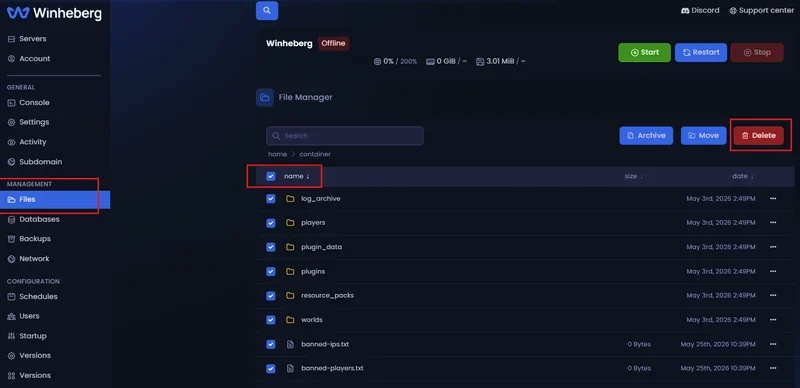
This step is what actually resets the server to zero. If you don't delete the files manually, some old files will still be present after reinstalling.
4. Reinstall the server
Once the files are deleted, open the Settings section and click Reinstall Server.
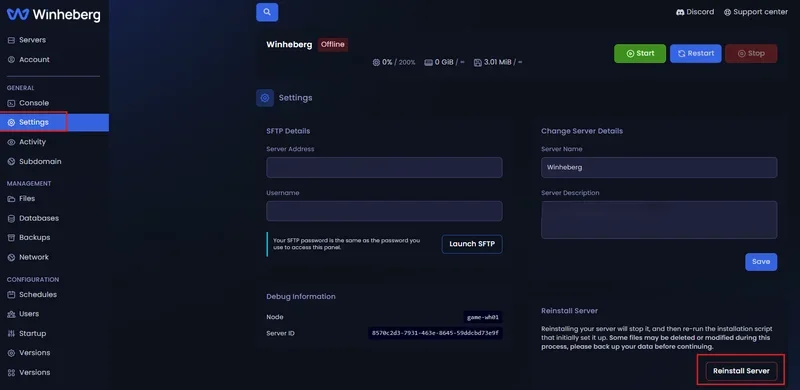
The panel will automatically redownload the files needed for a fresh, clean install of the server.
5. Start the server
Once the reinstall is done, go back to the server's console and click Start. The server will restart with a clean, empty install.
Remember to reconfigure your server, your settings, and your files after the full reset.
If you run into trouble
❌ The Reinstall Server button doesn't do anything
- Check that the server is stopped, the operation doesn't work while the server is running
- Reload the panel page and try again
❌ Files reappear after deletion
- Reload the Files page to confirm the deletion actually went through before moving to the next step
- If files persist, select them again and run the deletion once more
❌ The server doesn't start after reinstalling
- Check the panel's console for the exact error
- Check that the reinstall fully finished before clicking Start
- If the issue persists, contact our support
Best practices
- Back up your important files before deleting everything, the operation is irreversible
- Write down your current configuration (Startup, variables, installed mods) so you can reproduce it more easily afterward
- Warn your players if the server is currently in use, the reset causes an extended outage
- Check the installed game version after reinstalling, it matches the panel's default version and may differ from the one you were using before
Need help?
If your server doesn't reinstall correctly, or if some files reappear after deletion, our team is here. Open a ticket in the Technical department from your client area and fill in the Related product field with the server in question, our team can help you perform a full reset and check that the install is correctly rebuilt.
Your server is now ready to start fresh on solid ground 📦