Contexte
Managing Player versus Player (PVP) combat is a fundamental configuration choice for any Minecraft Bedrock server. Whether you are building a secure spawn lobby, a peaceful Creative world, a story-driven adventure map, or a competitive Faction server, PocketMine-MP allows you to toggle this gameplay mechanic globally with a single configuration line.
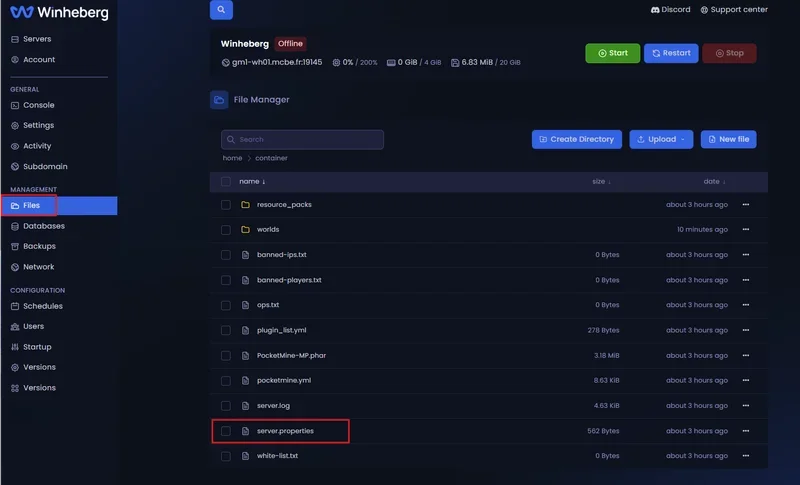
Access the File Manager
Any structural modification to your server options requires direct interaction with its internal configuration files.
- Log in to your management panel at panel.winheberg.com.
- Select your PocketMine-MP instance.
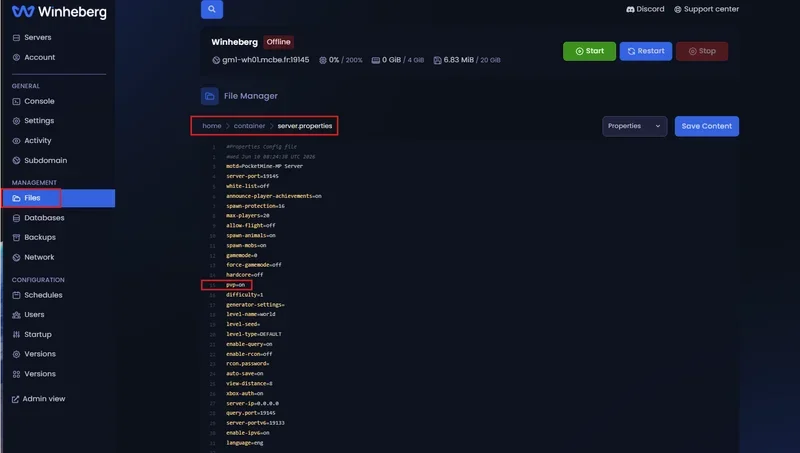
- In the left sidebar menu, click on the File manager tab.
Configure PVP: Step-by-Step
Follow these instructions carefully to alter physical interaction behaviors across your entire server.
1. Stop the Server Process
Before editing any system or configuration file, you must completely shut down your server. If the instance remains active in the background, PocketMine-MP will automatically overwrite your changes during its next write cycle or upon restart.
2. Edit the Main Configuration File
At the root of your server directory (/), locate and open the following document:
server.properties
Click on the file to open it within the text editor built into your management panel.
3. Modify the PVP Directive
Scroll through the parameters until you locate the line containing the pvp directive. Generally, this variable is found around line 15 in the default configuration file.
- To fully disable PVP (Peaceful Mode):
pvp=off - To enable combat between players (Competitive Mode):
pvp=on
4. Save Your Changes
Save your edits by clicking the Save Content button on the editor interface, or use the standard keyboard shortcut Ctrl + S (Cmd + S on macOS).
5. Boot the Server
Navigate to the Console tab of your panel and click the start button. The server will initialize and immediately apply your new combat rules.
Configuration Variables Behavior
| Applied Value | Direct In-Game Effect | Arrows and Potions Behavior |
|---|---|---|
pvp=on |
Players can inflict damage on each other across the entire map. | Projectiles (arrows, tridents) and harmful potion effects will damage other users. |
pvp=off |
Physical attacks between users are entirely ignored by the engine. | Arrows bounce off without causing harm, and splash potions apply no negative status effects. |
Troubleshooting
❌ PVP remains active despite setting pvp=off
- World management plugin interference: Multi-world or plot management utilities (such as MultiWorld or MyPlot) often manage PVP independently. Access those extensions' directories (e.g.,
/plugins/MyPlot/config.yml) to set their values tofalseoroff. - Startup overwrites: Ensure you completely stopped the server (using the Stop button) before editing
server.properties, otherwise the manual changes will be ignored.
❌ Combat is blocked in specific areas while global pvp=on
- Regional protection zones: If you use world protection extensions (such as WorldGuard or FAWE), a region flag is likely blocking local PVP. Verify area permissions using the appropriate command (e.g.,
/rg flag [name] pvp allow).
Best Practices
- World Granularity: If your project requires both safe spaces (Lobby, Market) and combat zones (Arena, Survival world), keep the global directive
pvp=oninserver.propertiesand use a region management plugin to locally restrict combat where needed. - Community Notifications: Changing combat rules mid-season can drastically impact the player experience. Always broadcast a global announcement before altering the
pvpvariable. - Restoration Points: Make it a habit to generate a backup via the Backups tab before manually editing any system configuration files to safeguard against potential syntax errors.
Need Help?
If combat mechanics do not behave as expected despite following this tutorial, or if your configuration files fail to load properly, our technical team is here to assist you.
You can submit a support ticket to our Technical department from your client area at billing.winheberg.com by linking your PocketMine-MP subscription for personalized troubleshooting.
Happy configuring and have a great game on your PocketMine-MP infrastructure! 🎮