Contexte
Hardcore mode is a challenging gameplay variant designed for communities seeking the ultimate test. When enabled on a Minecraft Bedrock Edition server via the PocketMine-MP architecture, player death becomes permanent: the player is instantly kicked (banned) or forced into spectator mode, halting their progression. This guide will walk you through managing this feature step-by-step.
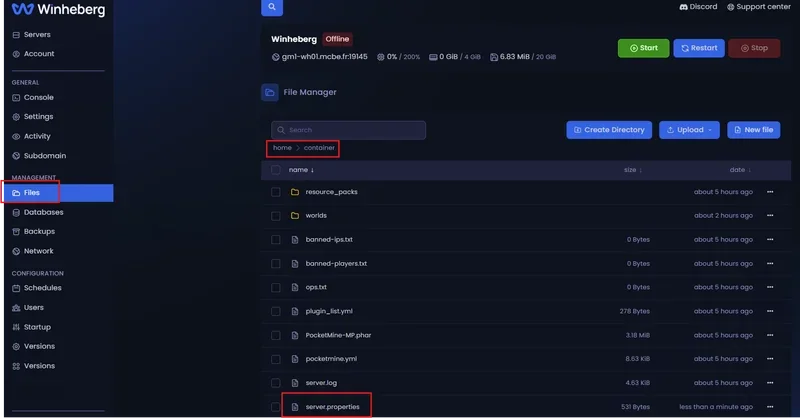
Access the File Manager
Modifying the fundamental mechanics of your world requires direct interaction with its main configuration file.
- Log in to your management panel at panel.winheberg.com.
- Select your PocketMine-MP instance.
- In the left sidebar menu, click on the File manager tab.
Configure Hardcore Mode: Step-by-Step
Follow these steps carefully to adjust the game mode and avoid any loading errors or file write conflicts.
1. Stop the Server Process
Before editing any file, ensure your server is completely shut down. If the process remains active in the background, PocketMine-MP will automatically overwrite your changes during its next write cycle or upon restart.
2. Edit the Main Configuration File
At the root of your server directory (/), locate and open the following document:
server.properties
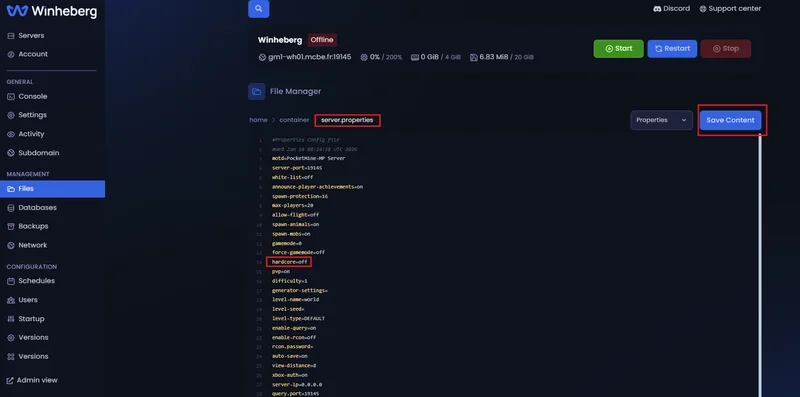
Click on the file to open it within the text editor built into your management panel.
3. Modify the Hardcore Directive
Scroll through the parameters until you locate the hardcore line. It is usually found around line 14 in the default configuration.
- To enable permadeath (Hardcore Mode):
hardcore=on - To disable permadeath (Return to classic mode):
hardcore=off
4. Save Your Changes
Save your edits by clicking the Save Content button on the editor interface, or use the standard keyboard shortcut Ctrl + S (Cmd + S on macOS).
5. Boot the Server
Navigate to the Console tab of your panel and click the start button. The server will initialize and immediately apply your new gameplay rules.
Configuration Variables Behavior
| Applied Value | Player Status After Death | Impact on Global Difficulty |
|---|---|---|
hardcore=on |
Automatic kick and respawn restriction (spectator mode or ban depending on setup). | Automatically locks the game difficulty to the maximum level. |
hardcore=off |
Standard respawn allowed at the world spawn point or near a valid bed. | The difficulty relies strictly on the separate difficulty variable. |
Troubleshooting
❌ Players respawn normally after dying
- Ensure the
server.propertiesfile was successfully saved and the syntax is exactlyhardcore=on(with no extra space after "on"). - Make sure you have restarted the server from the Console tab to apply the modifications.
- Temporarily disable any death management or respawn plugins that might override PocketMine-MP's native configuration.
❌ The configuration file resets itself
- The server instance was likely still running while you edited the file. Always completely shut down the server (using the Stop button) before editing
server.properties.
Best Practices
- Preventive Communication: Enabling Hardcore mode applies instantly upon the next login. Always notify your community beforehand; an unannounced permadeath is a major source of frustration.
- Regular Backups: Even though death is permanent in Hardcore mode, generate regular server restoration points (Backups). This allows you to restore the world or reinstate a dead player in the event of a server bug or cheating (exploit).
- Dependency Checks: If you are using third-party plugins for ban management (such as advanced UHC systems), verify their compatibility with the
hardcore=onvariable to prevent disconnection loops.
Need Help?
If respawn behaviors do not apply despite following this tutorial, or if the file refuses to save, our team is here to assist you.
You can submit a support ticket to our Technical department from your client area at billing.winheberg.com by linking your PocketMine-MP subscription for personalized troubleshooting.
Have a great survival journey on your PocketMine-MP infrastructure! 🎮