Contexte
One of the greatest strengths of PocketMine-MP lies in its modular architecture. Thanks to its plugin system, you can fully customize your Minecraft Bedrock environment: integrating a virtual economy, setting up Faction systems, fine-tuning permissions, or securing zones and land claims.
To enrich your gaming experience without compromising the stability of your infrastructure, it is essential to adopt a rigorous installation methodology and source your files from verified platforms. This guide will walk you through deploying extensions on your server hosted at Winheberg.
Prérequis
- An active PocketMine-MP server on your Winheberg management panel.
- A third-party SFTP client (such as FileZilla or WinSCP) for transferring large files (over 100 MB).
- A recent backup of your instance, generated via the Backups tab.
Before integrating any new extension, always perform a backup from the Backups tab. A corrupted or incompatible plugin can alter the integrity of your worlds or configurations. Our teams will not be able to restore data that has not been previously backed up.
1. Identify Trusted Download Platforms
To protect your server against malicious or poorly optimized scripts (which can saturate CPU/RAM resources), exclusively use official repositories:
- Poggit (poggit.pmmp.io): This is the official reference platform for PocketMine-MP. Plugins undergo a review process and are indexed according to their compatibility with your server's API.
- GitHub (github.com): Use this option for specific open-source extensions or development versions. Only download compiled files available in the Releases section of the official repositories.
2. Access the File Manager
Integrating an extension requires direct interaction with your server's file structure.
- Log in to your management panel at panel.winheberg.com.
- Select your PocketMine-MP instance.
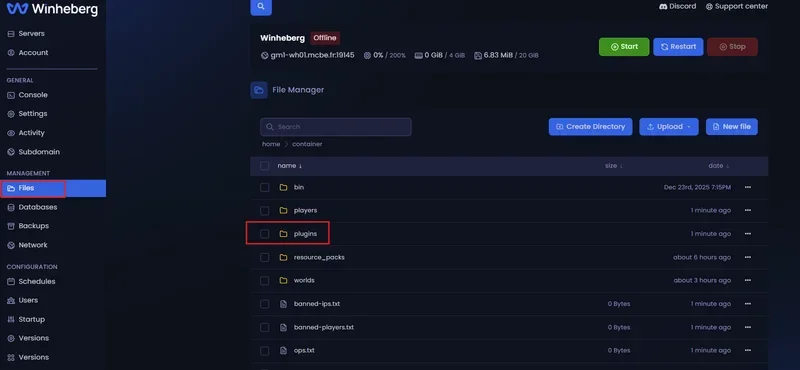
- In the left side menu, click on the File manager tab.
3. Open the Plugins Directory
From the root of your storage space (/), locate and open the following folder:
plugins
This space is the only directory configured for the initialization and reading of your extensions by the server engine.
4. Upload the Extension
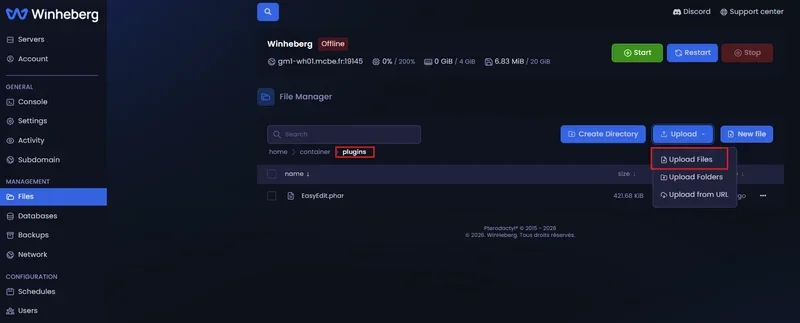
Depending on the distribution format provided by the developer, apply the appropriate method:
- Standard Method (
.pharfile): Drag and drop the.pharfile directly into the/pluginsfolder, or use the Upload button integrated into the panel. - Development Method (
.ziparchive): Since the web interface does not support uploading raw folders, source code must be imported compressed. Upload your.ziparchive, then use the Unarchive action to extract it as a folder. This method requires the prior presence of the DevTools plugin in your directory.
If your extension size exceeds 100 MB, the web panel's HTTP protocol may interrupt the transfer. In this case, use an SFTP client by retrieving your connection credentials from the Settings tab of your game panel.
5. Validate API Compatibility
During the first initialization, open your console stream to validate the match between the API required by the plugin and your PocketMine-MP binary.
If the API version declared in the plugin.yml manifest file (internal to the extension) does not match your server core requirements, the extension will be ignored and a critical alert will be issued in the logs. You will then need to update PocketMine-MP or obtain a suitable revision of the plugin.
6. Initialize and Load the Extension
Head over to the Console tab of your game panel, then click the Restart button. During the startup phase, the server will compile the extension and autonomously generate a modifiable configuration directory in the path /plugins/plugin_data/[PluginName]/.
Distribution Format Specifications
| File Format | Recommended Use Case | Prerequisites | Main Advantage |
|---|---|---|---|
.phar |
Production / Public Environment | None (Native) | Optimized reading speed, single and intact file |
.zip Archive |
Development / Editing Environment | Active DevTools | Allows direct modification of PHP source code after extraction |
En cas de problème
❌ Server Crash Loops
- Access your File Manager and delete the
.pharfile or folder of the last installed extension. - Restart the server to validate that the infrastructure returns to a stable state.
- Analyze the log files to identify the origin of the code conflict before any new attempt.
❌ Plugin is Missing or Marked Red in the Index
- Check API compliance in the
plugin.ymlfile against your server version. - Check your startup logs for any missing software dependency (another plugin required for the first one to function).
❌ Upload Failure or Interruption via Web Interface
- For any large file, prefer an SFTP connection using Filezilla or WinSCP.
- Your host and port connection parameters are permanently accessible in the Settings tab of your panel.
Bonnes pratiques d'administration
- Precautionary Principle: Never skip creating a restoration point (Backup) before altering your application folders.
- Unitary Deployment: Integrate your extensions one by one. This isolation allows you to instantly identify the responsible binary in case of a failure.
- Process Auditing: Run the
pluginscommand directly in your console. Working extensions are displayed in green, while modules with anomalies appear in red. - Software Hygiene: Regularly purge your residual configuration folders in
plugin_datafor extensions you no longer use.
Besoin d'aide ?
If your infrastructure shows persistent instability after adding a module, removing the concerned file from your storage space usually restores the server's nominal functionalities.
For any complex technical anomaly, SFTP lockouts, or API routing errors, our teams are at your disposal. You can submit a support ticket to our Technical department from your client area at billing.winheberg.com by attaching your PocketMine-MP subscription for personalized expertise.
Happy configuring and have a great game on your PocketMine-MP infrastructure 🎮