Contexte
The whitelist feature allows you to strictly restrict access to your PocketMine-MP server to explicitly authorized players only. Once this security measure is enabled, any player not appearing in this registry will be denied connection by the system, even if they possess the exact IP address and port of your infrastructure.
On your PocketMine-MP server hosted at Winheberg, implementing this restriction is particularly relevant in several scenarios.
- Making your gaming space completely private for invitation-only accessibility
- Restricting access to a circle of friends to prevent intrusions from unknown users
- Safeguarding the environment during critical construction phases, maintenance, or testing of your extensions
Prérequis
- An active PocketMine-MP game server on our platform
- Functional access to your administration interface with the server started (Online status) in order to execute console queries
- The exact Minecraft Bedrock usernames of the players you wish to add to the registry
If you enable the whitelist without previously registering your own game identifier, the system will reject your own connection. Take care to add yourself to the list before locking global access.
1. Log in to the management panel
Go to our administration interface accessible via panel.winheberg.com and select your PocketMine-MP instance from your active services.
2. Open the administration console
In the navigation menu located on the left of your screen, click on the Console option and ensure your instance is running correctly in the background before sending any commands.
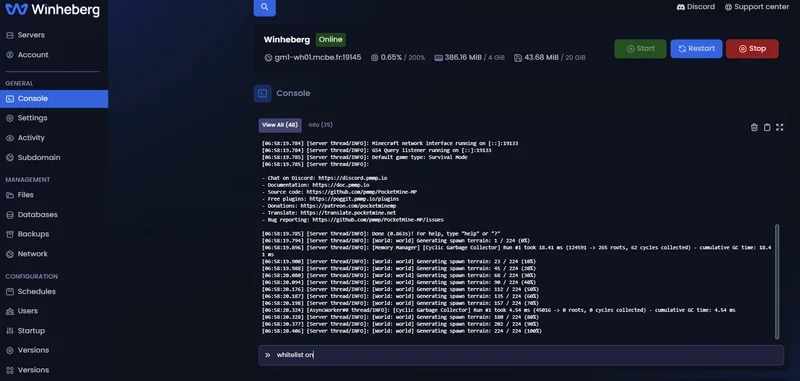
All whitelist management instructions are executed in real time directly through this console entry field.
3. Enable or disable the whitelist
To toggle your server into restricted access mode, send the following instruction.
whitelist on
If you wish to lift the filtering and reopen access to the instance for the general public, use the reverse directive.
whitelist off
Within the Winheberg management console, instructions must be entered without inserting the / character at the beginning of the line. Enter exclusively whitelist on and not /whitelist on.
4. Add a user to the whitelist
To grant permanent access authorization to a player, specify their exact username following the assignment command.
whitelist add PlayerUsername
For example, to validate access for the user Steve, transmit the following command.
whitelist add Steve
Upon instruction validation, the player is authorized to authenticate, even when the global restriction is active.
The specified identifier must match the user's Minecraft Bedrock username to the character, paying scrupulous attention to case sensitivity (uppercase and lowercase).
5. Revoke a player's access
To remove a user from your access registry, apply the removal instruction combined with the targeted profile name.
whitelist remove PlayerUsername
To illustrate this action with the user Steve, the instruction will be as follows.
whitelist remove Steve
If global filtering is active, the revoked user will be immediately disconnected and will no longer be able to establish a connection with the server.
6. View the authorized users registry
To check the complete list of currently approved accounts on your game instance, execute the general query command.
whitelist list
This command allows you to quickly audit the access granted on your infrastructure.
En cas de problème
Several verification mechanisms allow for resolving common access anomalies.
❌ Connection rejected for a registered player
- Check the case sensitivity of the configured username by meticulously comparing it with the user's real Bedrock identifier.
- Use the
whitelist listdirective to validate the correct presence of the account in the server registry. - Invite the player to completely restart their Minecraft application to refresh their client authentication token.
❌ Lack of filtering despite configuration
- Check the console confirmation return following the submission of the
whitelist oncommand. The console must explicitly validate the rule state change. - Ensure your server is not currently restarting, which could cancel the writing of temporary changes if they are not saved.
❌ Accidental lockout of your own administrator access
- If another member of your team has administrative privileges, invite them to execute the
whitelist add YourUsernameinstruction from their interface. - In the absence of a connected third party, temporarily disable the module via the
whitelist offinstruction in the console, apply your profile registration, then reactivate the security lock.
Bonnes pratiques
- Systematically register your administration and moderation profiles before enabling global filtering.
- Invite your users to send you an exact text copy of their Bedrock profile to eliminate the risks of manual entry errors.
- Perform periodic audits of your access via the
whitelist listcommand to clean up the registry of inactive profiles. - Prefer a global disabling (
whitelist off) rather than a complete deletion of your data if you wish to temporarily open your instance access for a public event.
Besoin d'aide ?
If the whitelist system exhibits abnormal behavior or if validated profiles face persistent lockouts, our technical teams remain at your entire disposal. You can initiate a support request with our Technical department by going to billing.winheberg.com and taking care to link your PocketMine-MP instance in the concerned product selection field.
A rigorously managed whitelist ensures the serenity and perfect security of your gaming community 🔒