Contexte
On a Minecraft Bedrock server, position coordinates are not displayed by default for users. However, these cartographic markers prove essential for locating a base after distant exploration, sharing a precise point of interest with your community on Discord, or marking the exact location of a generated structure such as a dungeon, village, or portal.
On the Winheberg platform, enabling this feature is done using a single command executed from your management console, without requiring manual file modifications or a restart of your game instance.
Prérequis
- An active Minecraft Bedrock game server on our infrastructure
- Functional access to your administration interface with permissions associated with the Console
- A running server (Online status)
1. Accessing the server console
Connect to your management panel via panel.winheberg.com, select your Minecraft Bedrock instance, then click on the Console option available in the left side menu.
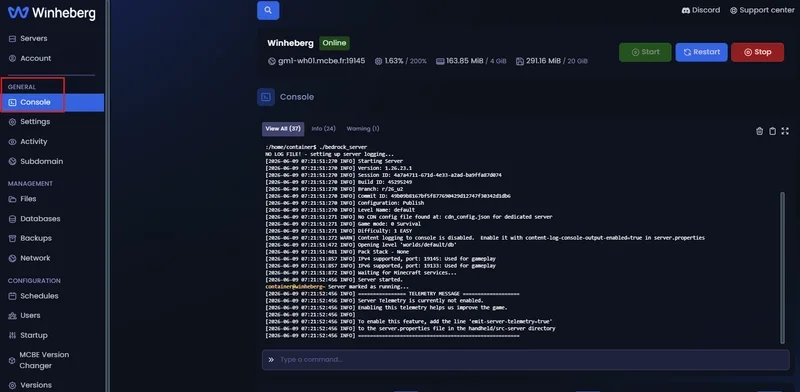
Within the Winheberg panel console, commands are executed without inserting the initial / character, unlike entries made directly from the in-game chat.
2. Enabling position coordinates
In the command entry field located at the bottom of the console interface, enter the following directive then validate with the Enter key.
gamerule showcoordinates true
Once the configuration is applied by the server, the cartographic coordinates instantly appear at the top left of the screen for all connected players, showing the three fundamental axes: X, Y, and Z.
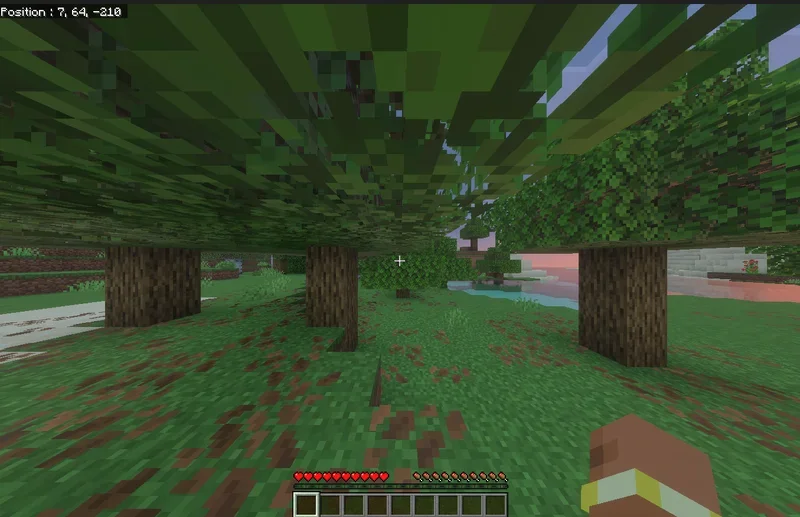
If some users do not notice the immediate appearance of the visual markers, a simple disconnection followed by a reconnection to the server forces the update of the settings on the client side.
3. Understanding cartographic axes
The three displayed variables determine the exact three-dimensional location of your character within the world.
| Axe | Signification | Détails de l'orientation |
|---|---|---|
| X | East / West Position | The value increases towards the East and decreases towards the West |
| Y | Altitude / Height | The value increases during an ascent and decreases towards the lower layers |
| Z | South / North Position | The value increases towards the South and decreases towards the North |
To facilitate your orientation, you can consult the pause menu of your game interface. The Facing text precisely indicates the current cardinal orientation of your character (north, south, east, west).
4. Disabling the display (Optional)
If you wish to hide this data again to enhance immersion or for the needs of a specific mini-game where positions must remain secret, execute the reverse command in your management console.
gamerule showcoordinates false
The visual display then instantly disappears for all users.
En cas de problème
Several additional checks are required if you encounter difficulties when applying the game rule.
❌ No effect following the command submission
- Ensure the game instance shows an active status (Running) within the panel.
- Verify the complete absence of the
/character at the beginning of the line in your console. - Check the exact syntax of the instruction (
showcoordinatesmust be written as a single word, without spaces or dashes).
❌ Partial display depending on players
- Invite the affected players to refresh their connection to the server.
- Verify that the game client local options do not override the global configuration (Settings > Game > Show Coordinates).
- On some Bedrock platforms, a complete restart of the Minecraft application may be required.
❌ Checking the current rule status
To query the server about the status of the variable, send the following instruction in the console.
gamerule showcoordinates
The system will return the current active value (true or false).
Bonnes pratiques
- Inform your community about the coordinates activation to maintain transparency in the gaming experience.
- Log strategic points of interest (initial spawn point, rare structures, bases) within a shared document to secure your progression.
- Disable this option on hardcore survival or adventure servers to preserve the full challenge of exploration.
- Combine these indicators with the teleportation command (
tp) to facilitate moderation interventions.
Besoin d'aide ?
If the display does not activate despite applying the rule or if technical anomalies persist, our team is at your entire disposal to guide you. You can submit a support request to our Technical department by going to billing.winheberg.com and completing the mandatory field for the product concerned.
Have a great exploration on your Minecraft Bedrock server 🎮