Contexte
Enabling cheat commands on a Minecraft Bedrock Edition server is an essential step for administrators who wish to use advanced management tools. This feature allows the execution of crucial system commands such as instantly changing the game mode (gamemode), teleporting players, or manipulating the environment and time.
This guide walks you through the two available methods to safely deploy this configuration on your Winheberg infrastructure.
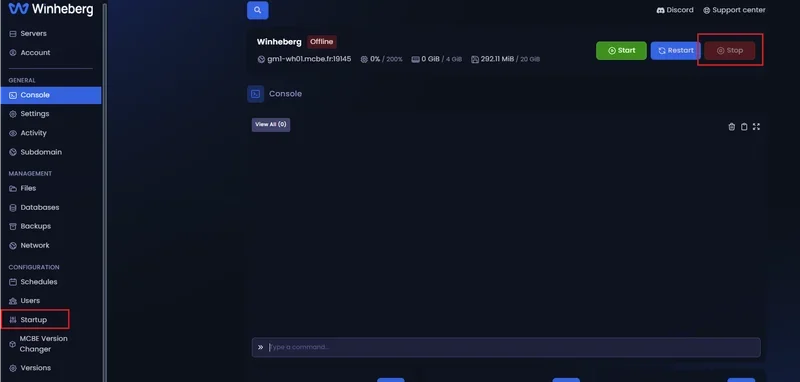
Before modifying any startup parameters or system files, your server must be completely stopped. If the process remains active in the background, your changes may be ignored or overwritten during the server's next write cycle.
1. Enable Cheats via the Panel (Recommended Method)
This method is the simplest and most secure, as it directly injects the required arguments without manually altering configuration files.
1.1 Access the Startup Parameters
- Log in to your management panel at panel.winheberg.com.
- Select your Minecraft Bedrock instance.
- In the left sidebar menu, click on the Startup tab.
1.2 Toggle the Allow Cheats Variable
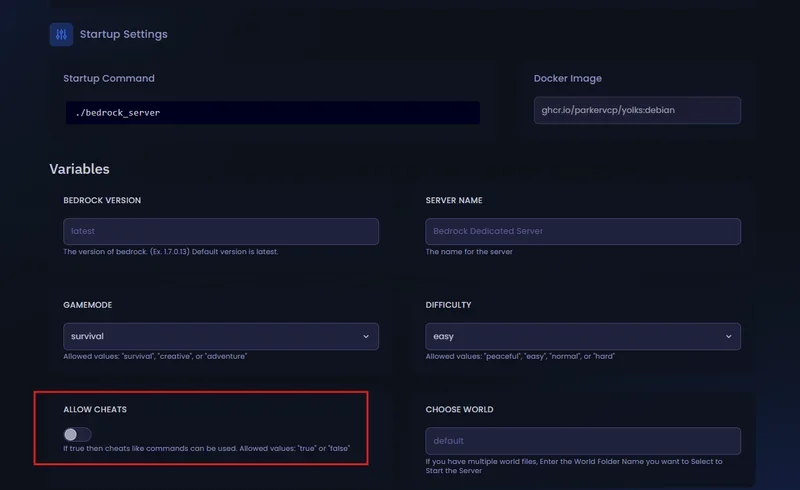
- Locate the configuration block named Allow Cheats.
- Toggle the switch or check the corresponding box to set the value to active.
2. Enable Cheats via the server.properties File
If you prefer to manage your directives textually, you can directly modify the server's main configuration file.
2.1 Open the File Manager
- In the left sidebar menu of your panel, click on the File manager tab.
- At the root of your storage directory (
/), locate and open the following file:
server.properties
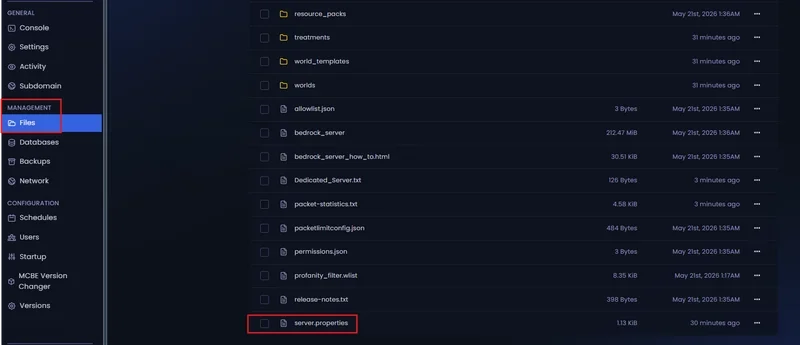
2.2 Modify the allow-cheats Directive
Search for the line containing the allow-cheats variable (usually set to false by default) and apply the following modification:
allow-cheats=true
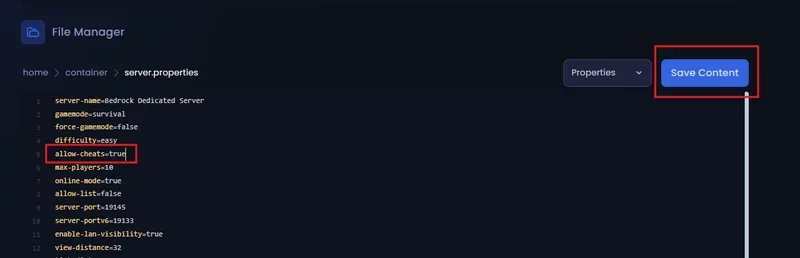
Save your changes by clicking the Save Content button on the editor interface, or use the standard keyboard shortcut Ctrl + S (Cmd + S on macOS).
3. Start the Server and Validate Permissions
Navigate to the Console tab of your management panel and click the Start button. The server will initialize and immediately apply your new gameplay rules.
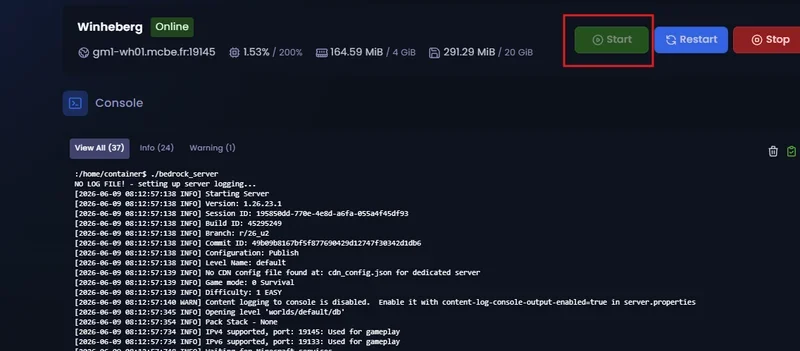
Enabling cheats globally does not allow all players to execute these commands. To use admin commands in-game, the user account must have Operator (OP) status.
To grant yourself these rights, enter the following command directly into your web Console (without the / character):
op YourExactUsername
Once these steps are validated, connect to your server and test the functionality via the text chat:
/gamemode creative
Troubleshooting
❌ The message "Cheats are not enabled on this server" appears
- Configuration Priority Conflict: If you modified the
server.propertiesfile textually but the variable in the Startup tab remained disabled, the panel may overwrite your file upon booting. Always prefer configuring via the Startup tab. - Missing OP Status: Ensure your player character has been granted operator privileges via the
opcommand in the console.
❌ The server.properties file resets automatically
- Your server instance was likely still running while you edited the file. Always completely shut down the server (using the Stop button) before editing system files.
Best Practices
- Impact on Achievements: Note that enabling cheat commands permanently disables Xbox Live achievements for all players on this world. If your community values these rewards, prefer a purely Vanilla environment with cheats turned off.
- Principle of Least Privilege: Only grant Operator (OP) status to members of your administration team who require absolute trust. An OP user has total control over the economy, blocks, and player database in-game.
- Systematic Restoration Points: Using large-scale world-altering cheat commands (such as
/fillor/clone) can instantly saturate the server's RAM resources or damage your structures. Always perform a backup via the Backups tab before running mass edits.
Need Help?
If admin commands remain inaccessible or if your startup variables fail to save despite following this tutorial, our team is here to assist you.
You can submit a support ticket to our Technical department from your client area at billing.winheberg.com by linking your Minecraft Bedrock subscription for personalized troubleshooting.
Happy configuring and have a great game on your Winheberg infrastructure! 🎮