Context
You manage a FiveM server (GTA RP) and want to connect it to a MySQL database to store player accounts, inventory, vehicles, money, or any other persistent data? Whether you use oxmysql, ghmattimysql, or another connector, the configuration always goes through the same mysql_connection_string variable in your server.cfg.
This guide walks you through setting up this connection correctly, with security best practices and fixes for the most common errors.
Make sure sensitive information such as passwords stays secure and isn't shared publicly. Never commit your server.cfg to a public Git repository, even temporarily.
Prerequisites
Before you start, make sure you have the following.
- An active FiveM server on your Winheberg gaming panel
- A MySQL connector installed on your FiveM server (oxmysql, ghmattimysql, mysql-async, etc.)
1. Create a database from the gaming panel
Your database is created directly from the Winheberg gaming panel, in your FiveM server's dedicated section.
- Log in to your Winheberg gaming panel
- Go to your FiveM server
- Open the Databases tab
- Click Create Database (or equivalent) to create a new one
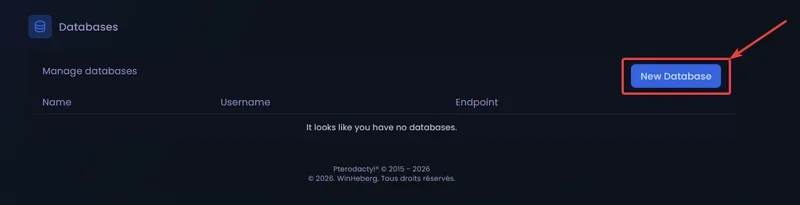
Once the database is created, you'll get a database name, a username, and a password. This information will appear immediately in the databases table.
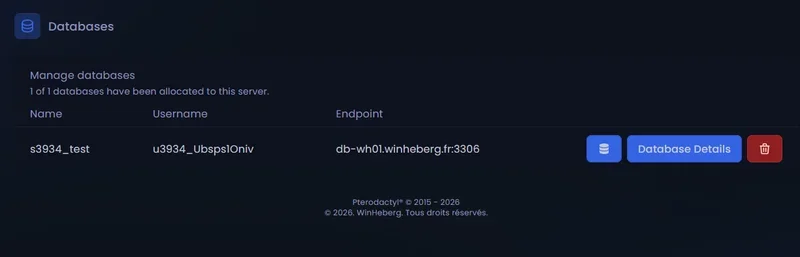
2. Get the ready-to-use connection string
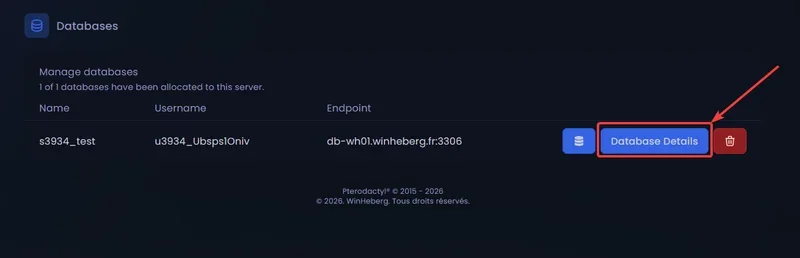
To make things easier, Winheberg automatically generates the full connection string in the Database Details section.
- Click your freshly created database
- Scroll down to the Database Details section
- Find the Fxserver Database line, which contains the
mysql_connection_stringready to copy
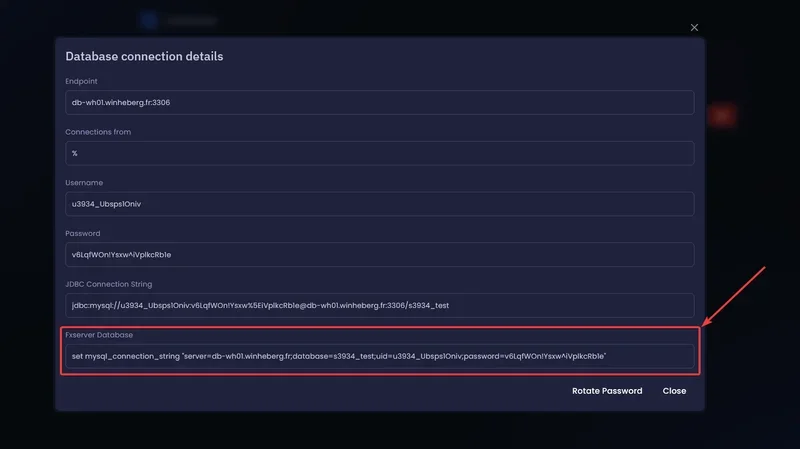
This line looks like this.
set mysql_connection_string "server=dbXX.wh-nodes.net;database=sxx_Exemple;userid=uxxx_Exemple;password=PASSWORD"
You just need to copy it into your server.cfg.
If your password contains characters like =, ;, ", or ', parsing the connection string will fail (especially with OXMYSQL). If that happens, regenerate the password from the panel (the Rotate password option or equivalent) until you get a clean password. See the "Password containing problematic characters" section below.
3. Add the string to server.cfg
Open your server.cfg file (at the root of your FiveM server) and paste the line you just copied from the panel.
set mysql_connection_string "server=dbXX.wh-nodes.net;database=sxx_Exemple;userid=uxxx_Exemple;password=YOUR_PASSWORD"
If the mysql_connection_string line already exists in your server.cfg, replace it entirely with the new one.
4. Restart your FiveM server
After saving the changes, fully restart your server so the new configuration takes effect. A simple resource restart isn't enough, since mysql_connection_string is loaded when the server starts.
5. Check the connection
Once the server has restarted, check the FiveM logs. If the connection works, you should see a message like this.
[oxmysql] Database server connection established!
If you see an error instead, check the "If you run into trouble" section at the end of this guide.
Password containing problematic characters
Some special characters (=, ;, ", ') are used in the syntax itself of the mysql_connection_string and will break the string's parsing. This is especially true with OXMYSQL, which is very strict.
If your password contains one of these characters, the simplest solution is to regenerate the password from the panel.
- Go back to the Databases tab on the gaming panel
- Click your database
- Use the Rotate password option (or equivalent)
- Check that the new password doesn't contain any of the problematic characters
- If needed, rotate again until you get a clean password
- Get the updated Fxserver Database string again from Database Details
- Replace it in your
server.cfgand restart your server
Security best practices
A few rules to follow to keep your MySQL connection secure.
- Never share your
server.cfgon public forums or GitHub, it contains your MySQL password in plain text - Regenerate your password from the panel if you suspect a leak, for example if you accidentally shared your
server.cfg - Make regular backups of your database with
mysqldumpor through the panel - Don't give panel access to unauthorized people, they could see your MySQL password in plain text in Database Details
If you run into trouble
Here are the most common errors you might run into.
❌ Access denied for user
The username or password is incorrect. Check the following.
- That you correctly copied the full line from Database Details without truncating it
- That the password doesn't contain forbidden characters (
=,;,",'), if it does, regenerate it from the panel - That there's no extra space before or after the values in your
mysql_connection_string
❌ Can't connect to MySQL server
FiveM can't reach the MySQL server. Check the following.
- That the server address (
dbXX.wh-nodes.net) is spelled correctly in yourmysql_connection_string - That your database is active in the gaming panel, not suspended or deleted
- That your FiveM server has outbound network access, normally always the case at Winheberg
❌ The server starts but no data is being saved
Check the FiveM logs at startup. You'll likely see a silent connection error. If you're using oxmysql, run the following command in the FiveM console to enable debug mode.
oxmysql_debug true
This will enable detailed MySQL query logs and help you identify the issue.
❌ Unknown collation 'utf8mb4_0900_ai_ci'
This error happens when you import a database exported from MySQL 8 into MariaDB. Before importing, replace every occurrence of utf8mb4_0900_ai_ci with utf8mb4_unicode_ci in your SQL file.
Need help?
If your FiveM server still won't connect to MySQL despite these steps, our team is here. Open a ticket in the Technical department from your client area, fill in the Produit lié field with the server in question, and attach your FiveM server's startup logs.
Your FiveM server is now connected to its database and ready to save your players' data 🎮