Context
You manage a FiveM server at Winheberg and want to access phpMyAdmin to manage your database? Whether it's to import an SQL file, create tables, edit player data, or make backups, phpMyAdmin is the most convenient tool to manage your MySQL database visually without using the command line.
Good news, Winheberg gives you direct access to phpMyAdmin from your gaming panel, in a single click.
Prerequisites
Before you start, make sure you have the following.
- An active FiveM server on your Winheberg gaming panel
- A database already created for your FiveM server (if not, check our guide on connecting a FiveM server to a MySQL database)
- The username and password for your database, available in the panel's Database Details section
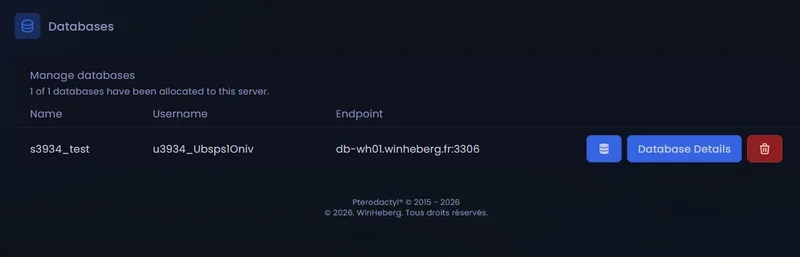
1. Go to the Databases section
- Log in to your Winheberg gaming panel
- Select your FiveM server
- Open the Databases tab
- You'll see the list of your existing databases
2. Click the phpMyAdmin button
On your database's row, find the phpMyAdmin button (usually shown as an icon or a dedicated link).
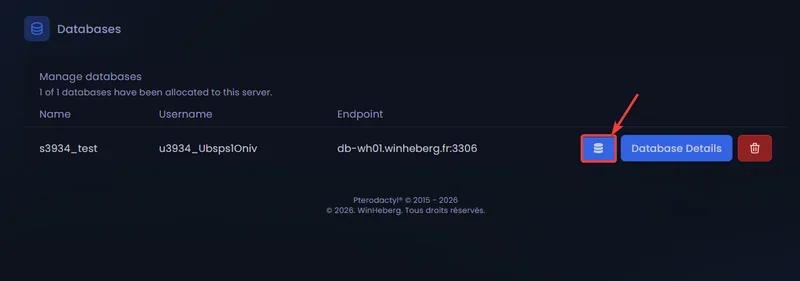
Click it to open the phpMyAdmin interface in a new tab.
3. Log in to phpMyAdmin
Once on the phpMyAdmin interface, you need to authenticate with your database's credentials.
| Field | Where to find it |
|---|---|
| Username | Format uxxx_Exemple, visible in the panel's Database Details |
| Password | Available in Database Details, via the button to reveal the password |
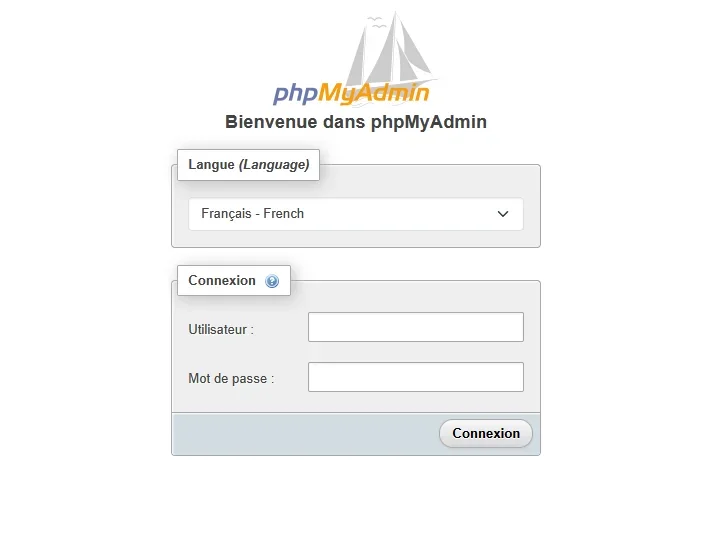
To find your credentials, go to the panel's Databases tab, click your database, and scroll down to the Database Details section. You'll find the username there and a button to reveal the password.
Once logged in, you'll land on phpMyAdmin's main interface with your database accessible in the left panel.
What can you do in phpMyAdmin?
phpMyAdmin lets you do everything with your MySQL database without typing a single command. Here are the most common operations for a FiveM server.
Import an SQL file
When installing a FiveM resource (an inventory system, a banking script, etc.), you often need to import a .sql file to create the required tables.
- Select your database in the left panel
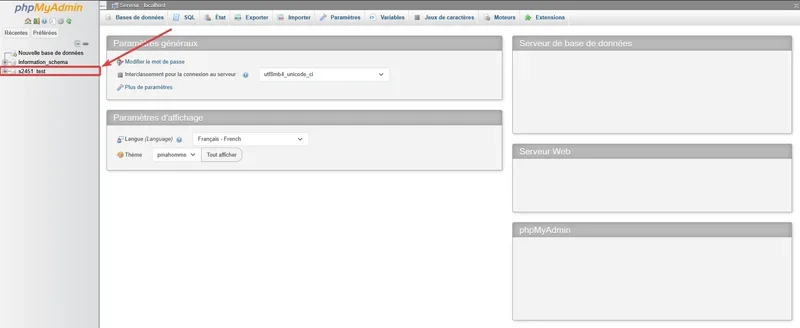
- Click the Import tab
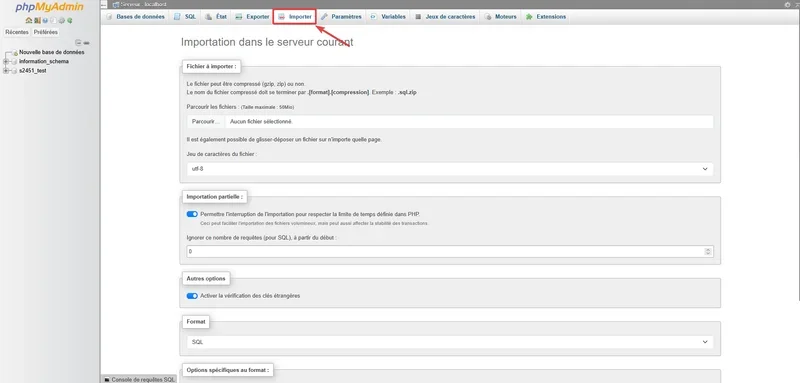
- Click Choose File and select your
.sqlfile
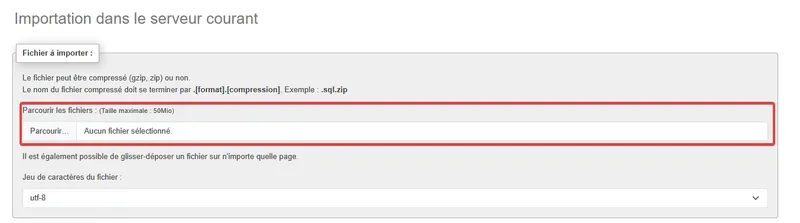
- Click Import at the bottom of the page

Before importing a large SQL file, make a backup of your current database. A mistake can overwrite existing data.
Export your database (backup)
To make a full backup of your database.
- Select your database in the left panel
- Click the Export tab
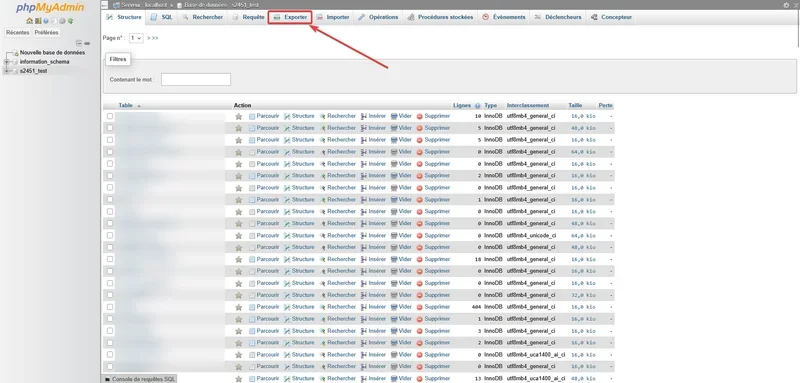
- Leave the method on Quick and the format on SQL
- Click Export to download the file
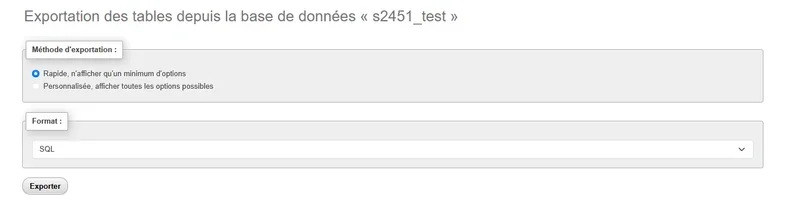
This .sql file contains all your tables and data. Keep it somewhere safe.
Get into the habit of making a backup before every major change, installing a new script, updating your framework (ESX, QBCore, etc.), or manually cleaning up data.
Browse and edit data
To view or edit stored data (for example, a player's money, inventory, or permissions).
- Click your database in the left panel
- Click the table you're interested in (for example
users,players, orcharactersdepending on your framework) - Click the Browse tab to see the data
- Click the pencil icon next to a row to edit it
Run an SQL query
For advanced operations, you can run SQL queries directly.
- Select your database
- Click the SQL tab
- Type your query (for example,
UPDATE users SET money = 50000 WHERE identifier = 'steam:xxxxx';) - Click Go
An UPDATE or DELETE query without a WHERE clause can modify or delete every row in your table. Always double-check your query before running it.
Best practices
A few recommendations for using phpMyAdmin safely on your FiveM server.
- Make regular backups of your database (at least once a week, and before any major change)
- Stop your FiveM server before making large-scale changes to the database. If your server writes data at the same time you do, you risk data corruption
- Never delete a table unless you're absolutely sure of what you're doing. A deleted system table can break your entire server
- Document your changes somewhere, especially if several people work on the same server
- Close the phpMyAdmin tab when you're done, especially on a shared computer
If you run into trouble
Here are the most common errors you might run into.
❌ "Access denied" when logging in
Your credentials are incorrect. Check the following.
- That you correctly copied the username (in the
uxxx_Exempleformat) without any mistake - That you copied the full password, with no extra space before or after
- That you're using the database's credentials, not your Winheberg account's
❌ The phpMyAdmin page doesn't load
If the phpMyAdmin button doesn't open anything or the page stays blank, check the following.
- That your browser hasn't blocked the new tab from opening (popup blocker)
- That you're not running an extension that blocks requests (uBlock, Privacy Badger, etc.) on this URL
- That your database is active in the panel (not suspended)
❌ "MySQL server has gone away" during an import
Your SQL file is too large and the connection times out during the import. Possible solutions.
- Split your SQL file into several smaller files and import them one by one
- Use command-line import directly on your FiveM server (
mysql -u uxxx_Exemple -p sxx_Exemple < file.sql) - Contact our support to increase the upload limit on your phpMyAdmin instance
❌ Import fails with a collation error
If you see Unknown collation: 'utf8mb4_0900_ai_ci', your SQL file comes from MySQL 8 and isn't compatible with your MariaDB database. Before importing, open the SQL file in a text editor and replace every occurrence of utf8mb4_0900_ai_ci with utf8mb4_unicode_ci.
Need help?
If you can't access phpMyAdmin or run into an issue during an operation, our team is here. Open a ticket in the Technical department from your client area, fill in the Produit lié field with the server in question, and specify what you're trying to do along with the exact error message.
You now know how to access phpMyAdmin and manage your FiveM server's database like a pro 🛠️