Context
Are you trying to join your Satisfactory multiplayer server at WinHeberg but the connection fails? One of the most common errors is the "Connection Timed Out" message, which interrupts the loading screen and sends you back to the main menu.
This guide explains where this error comes from and how to fix it quickly by tweaking a simple setting in your game.
Why does this error occur?
The "Connection Timed Out" error means that your computer failed to establish or maintain a stable connection with the server within the game's strict time limit.
Several factors can trigger this timeout issue.
- An unstable internet connection or packet loss on your end
- A synchronization timeout set too short by the game between your client and the server
- An inadequate network configuration in your Satisfactory settings
- A server temporarily overloaded during the initial loading of a massive factory
In the vast majority of cases, simply changing the Network Quality setting directly in the game menus is enough to permanently fix this error.
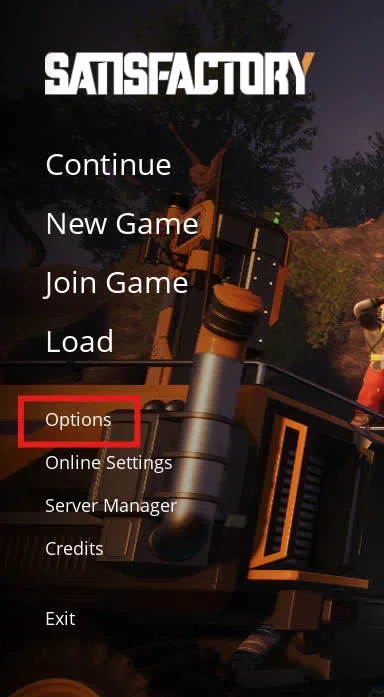
1. Open Satisfactory options
The change must be made from your game's main menu.
- Launch Satisfactory on your computer
- Wait until you reach the main menu
- Click on the Options button
2. Set network quality to Ultra
This setting will give the game more time and bandwidth to synchronize the map data with the server.
- In the options menu, go to the Gameplay tab
- Scroll down until you find the Network Quality setting
- Change the value to select Ultra
- Apply the changes by exiting the menu
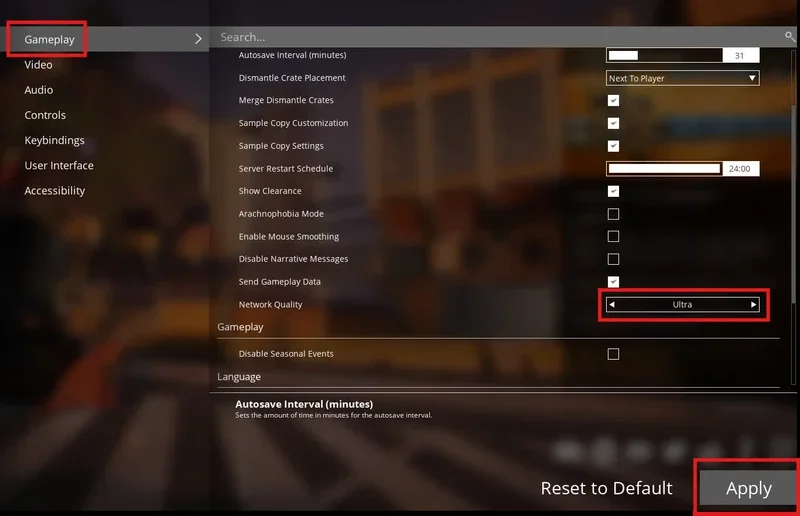
The Ultra mode significantly increases the data limit allowed by the game and softens the client/server synchronization, which drastically reduces the risk of disconnections during the critical world loading phase.
3. Restart the game and join the server
To ensure the game client fully applies this new setting in memory.
- Completely close Satisfactory
- Relaunch the game
- Go back to your server manager and click on Join Game
- Wait for the world to fully load
Troubleshooting
Here are specific situations if the issue persists despite setting the quality to Ultra.
❌ Loading still freezes at 99% or crashes
If the loading bar freezes right before entering the game.
- Verify your game files via Steam or Epic Games to ensure no files are corrupted
- Make sure your firewall or antivirus is not blocking the game's communication ports
- Completely restart your internet router to clear the DNS cache
❌ Abnormally high ping
If your connection suffers from heavy latency.
- Prefer a wired connection (Ethernet) rather than Wi-Fi, which is much more sensitive to micro-drops
- Close bandwidth-heavy background applications (streaming, active downloads)
Best practices
A few tips to optimize your Satisfactory multiplayer experience.
- Check the game version: Ensure that both your client and server are running on the exact same version to prevent protocol conflicts
- Play on Ethernet: Satisfactory's network traffic is intense, and a stable connection is vital to avoid timeouts
- Notify your host if the issue originates from the remote server and all players in the session are affected simultaneously
Need help?
If the "Connection Timed Out" message persists despite changing the network quality to Ultra, don't hesitate to contact our support by specifying your server name and the steps you have already tried.
The loading is now complete, you are ready to get back to optimizing your production lines 🎮.