

Context
The Steam Workshop hosts thousands of community-made mods for many games. A collection lets you gather several of these items in one place, so you can share them or install them all at once rather than one by one.
On a game server hosted with Winheberg, this approach is especially handy. Many servers read a Workshop collection directly and download all of its content on startup. You simply create the collection, add your mods to it, then enter its identifier in your server configuration.
To then install this collection on your server, see our guide « How to install mods on a Garry's Mod server ».
Requirements
- A Steam account with Steam Guard enabled, required to publish a public collection
- A game that has an active Steam Workshop
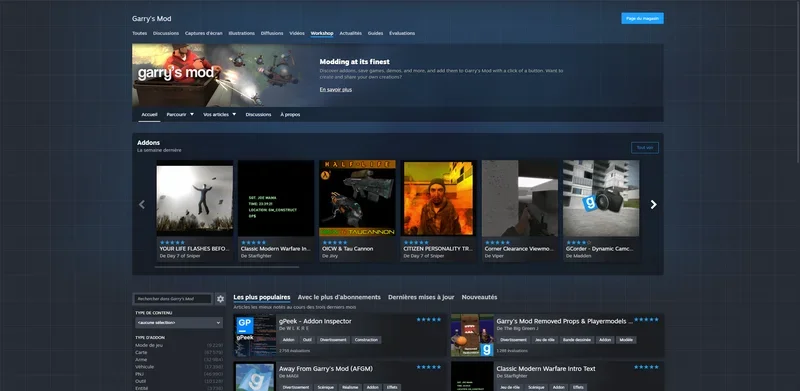
1. Open the game's Workshop on Steam
Open Steam, drop down the Community menu then select Workshop. Search for the game you want, for example Garry's Mod, and open its Workshop page.
2. Add your mods
Before creating your collection, subscribe to the mods you want to include. On each mod's Workshop page, click Subscribe or add it to your favorites. Only mods you are subscribed to, have favorited or published by yourself will then appear in the collection list.
3. Create the collection
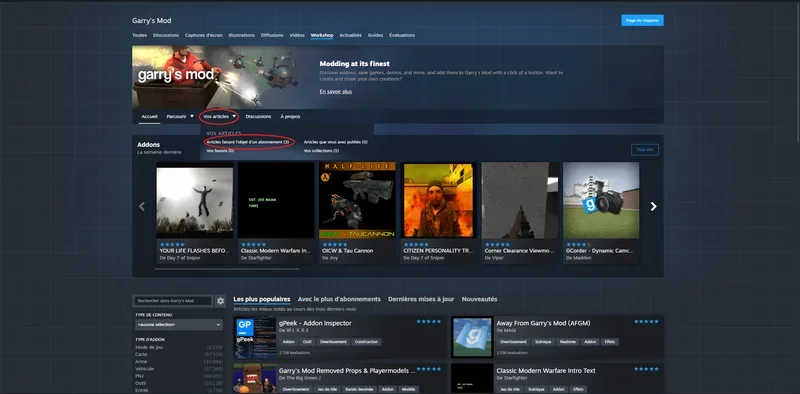
In the Browse menu, open the « Your Items » section then « Subscribed Items ».
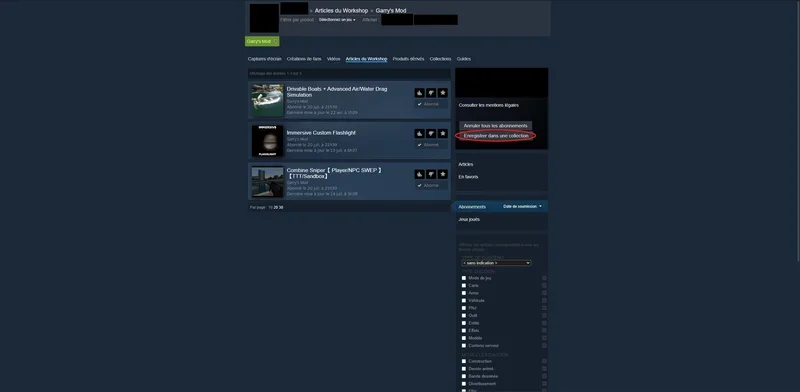
Then click the Create Collection button on the right.
Enter your collection title, add a preview image if you wish and a short description.
Confirm with Save and Continue, select the mods to include from your subscribed items, then publish the collection with Publish. Finally set its visibility to Public so a server can read it.
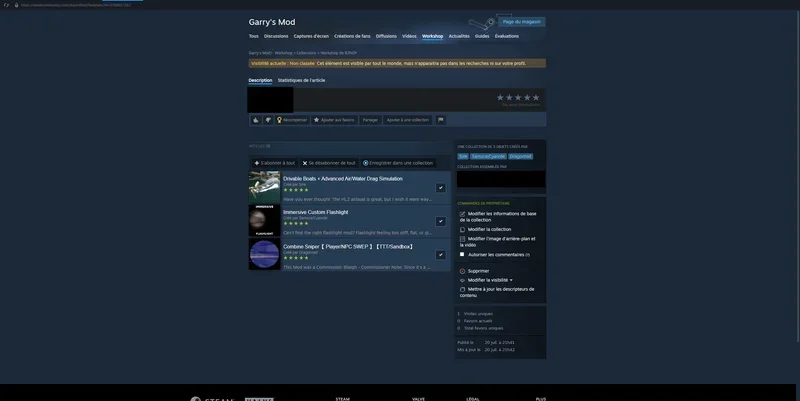
You can add more mods later, directly from their Workshop page using the Add to Collection button.
Troubleshooting
❌ An error appears when saving the collection
The error message shows up after clicking Save and Continue.
- Reduce the number of items added at first, you can add more afterwards
- Clear the cache of the browser built into Steam from the settings, Web Browser section
- Try again from a regular web browser on steamcommunity.com
- Temporarily switch the Steam interface to English
❌ Your mods do not appear in the list to add
The selection window stays empty or incomplete.
- Subscribe to the mod or add it to your favorites from its Workshop page
- Check that you are logged in with the right Steam account
- Reload the collection management page
❌ The collection stays impossible to find for others
The collection exists but nobody else can see it.
- Check that visibility is set to Public
- Wait through the approval period Steam applies to a visibility change
- Make sure Steam Guard is enabled on your account
Best practices
- Give your collection a clear name and description so you can find it easily later
- Add a preview image to identify it at a glance among your collections
- Group your mods by use, for example one collection per server or per game theme
- Check each mod's dependencies on its Workshop page before adding it
- Regularly remove obsolete mods to keep a clean and up to date collection
Need help?
If your server does not load the content of your collection, our support team is available. Open a ticket from your client area https://billing.winheberg.fr by selecting the Technique department, then fill in the server concerned in the Related Product field.
Your collection is ready to feed your game server. 🎮
