Context
You manage a Palworld server at WinHeberg and want to customize it to tailor the gameplay experience to your community? Whether it's to adjust difficulty, increase Pal capture rates, modify XP multipliers, or enable PvP, everything is done through a single configuration file, PalWorldSettings.ini.
This guide walks you through how to edit this file properly and lists all available parameters with their description and default value, so you can configure your server exactly the way you want.
The server must be completely stopped before any modification to the configuration files. If you modify the file while the server is running, Palworld will overwrite your changes on the next restart and all your work will be lost.
Prerequisites
Before getting started, make sure you have the following.
- An active Palworld server on your WinHeberg gaming panel
- Access to the panel's file manager or an SFTP client (FileZilla, WinSCP)
- A few minutes to adjust the parameters to your preferences
1. Stop your server
Before any modification, your server must be completely shut down.
- Log in to your WinHeberg gaming panel
- Select your Palworld server
- On the main page, click Stop if the server is running
- Wait for the status to switch to Offline
2. Copy the default configuration
The DefaultPalWorldSettings.ini file located at the root of your server contains all possible parameters with their default values. It's the template we're going to duplicate to create our custom configuration.
- Open the file manager in the panel or connect via SFTP
- At the root of your server, open the file
DefaultPalWorldSettings.ini - Copy the entire content
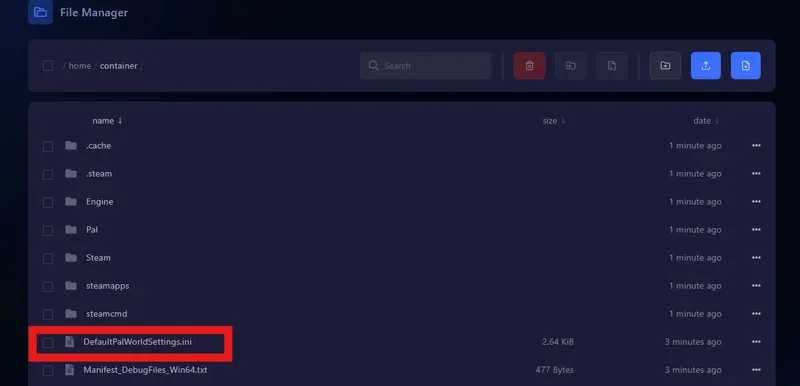
If you've already done this step during a previous configuration, you can skip directly to step 4. The PalWorldSettings.ini file already exists and already contains your custom configuration.
3. Access the configuration folder
The file to modify is located in a different subfolder depending on your server environment.
/Pal/Saved/Config/LinuxServer
or alternatively.
/Pal/Saved/Config/WindowsServer


At WinHeberg, Palworld servers generally run on Linux. If you don't find the WindowsServer folder, that's normal, go directly to LinuxServer.
4. Modify the PalWorldSettings.ini file
- Open the
PalWorldSettings.inifile in the folder you just located - Delete all the existing content of the file
- Paste the configuration you copied in step 2
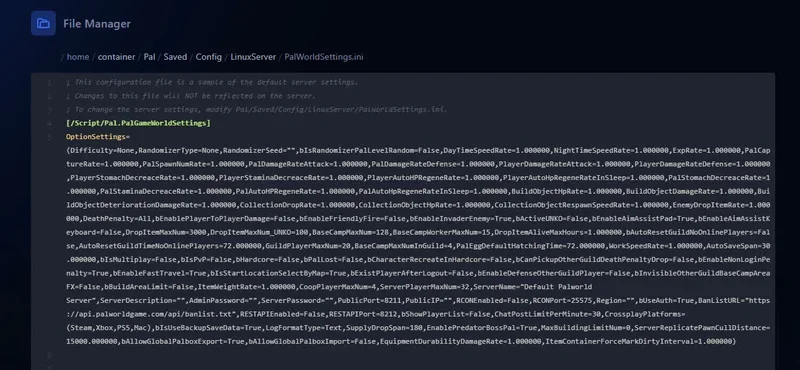
Formatting rules to follow absolutely
The PalWorldSettings.ini file has a very strict syntax. The slightest deviation can prevent your server from starting.
- Don't add empty lines between parameters
- Don't modify the structure of the file (all parameters are on a single long line, between parentheses)
- Keep quotation marks, commas, and parentheses exactly as in the original file
- Don't put spaces around the
=sign (alwaysParam=Value, neverParam = Value)
If the file's syntax is broken (missing parenthesis, forgotten comma, misplaced space), your server won't start at all. When in doubt, make a backup of the file before modification so you can roll back.
5. Customize the parameters
Once the base configuration is in place, you can modify each parameter according to your preferences. The sections below list all available parameters, organized by theme.
5.1 Server identity and connection
| Parameter | Description | Default value |
|---|---|---|
ServerName |
Server name displayed in the public list | Pterodactyl Server |
ServerDescription |
Server description | "" |
ServerPassword |
Server access password | "" |
AdminPassword |
Administrator password for commands | "" |
PublicIP |
Public IP address of the server | "" |
PublicPort |
Public port used by the server | 8211 |
Region |
Server region | "" |
ServerPlayerMaxNum |
Maximum number of simultaneous players | 32 |
AllowConnectPlatform |
Platform allowed to connect | Steam |
bUseAuth |
Enables authentication on the server (True, False) |
True |
bShowPlayerList |
Displays the list of connected players (True, False) |
False |
RCONEnabled |
Enables RCON access to the server (True, False) |
False |
RCONPort |
RCON port | "" |
RESTAPIEnabled |
Enables the REST API for the server (True, False) |
False |
RESTAPIPort |
Port used by the REST API | 8212 |
On WinHeberg, don't modify the PublicPort unless you have a specific reason. The port is automatically assigned by the panel and any manual change can prevent your players from connecting.
5.2 Difficulty, time, and world
| Parameter | Description | Default value |
|---|---|---|
Difficulty |
Difficulty level (None, Easy, Normal, Hard) |
None |
DayTimeSpeedRate |
Speed of time passage during the day | 1.000000 |
NightTimeSpeedRate |
Speed of time passage at night | 1.000000 |
RandomizerType |
Type of world randomization (None, Basic, Advanced) |
None |
RandomizerSeed |
Seed used for randomization | "" |
SupplyDropSpan |
Resource drop interval (minutes) | 180 |
EnablePredatorBossPal |
Enables predator boss-type Pals (True, False) |
True |
ServerReplicatePawnCullDistance |
Entity render distance | 15000.000000 |
5.3 Multipliers (XP, capture, rates)
| Parameter | Description | Default value |
|---|---|---|
ExpRate |
Experience gain rate | 1.000000 |
PalCaptureRate |
Pal capture rate | 1.000000 |
PalSpawnNumRate |
Pal spawn rate in the world | 1.000000 |
CollectionDropRate |
Drop rate of collected items | 1.000000 |
CollectionObjectRespawnSpeedRate |
Respawn speed of collectible objects | 1.000000 |
EnemyDropItemRate |
Drop rate of items from enemies | 1.000000 |
WorkSpeedRate |
Work speed rate of Pals | 1.000000 |
ItemWeightRate |
Modifies the weight of items | 1.000000 |
For a community server, many administrators slightly increase the rates (1.5x to 2x) to make progression more enjoyable. Avoid values that are too high (10x or more) which completely break the game balance.
5.4 Combat, damage, and survival
| Parameter | Description | Default value |
|---|---|---|
DeathPenalty |
Penalty on death (All, Partial, None) |
All |
bEnablePlayerToPlayerDamage |
Enables player-to-player damage (True, False) |
False |
bEnableFriendlyFire |
Enables damage to allies (True, False) |
False |
bIsPvP |
Enables player-versus-player mode (True, False) |
False |
bHardcore |
Enables hardcore mode (True, False) |
False |
bPalLost |
Enables permanent loss of Pals on death (True, False) |
False |
bEnableInvaderEnemy |
Enables invader enemies (True, False) |
True |
PalDamageRateAttack |
Damage rate inflicted by Pals | 1.000000 |
PalDamageRateDefense |
Damage resistance rate of Pals | 1.000000 |
PlayerDamageRateAttack |
Damage rate inflicted by the player | 1.000000 |
PlayerDamageRateDefense |
Damage resistance rate of the player | 1.000000 |
PlayerStomachDecreaceRate |
Player satiety decrease rate | 1.000000 |
PlayerStaminaDecreaceRate |
Player stamina decrease rate | 1.000000 |
PlayerAutoHPRegeneRate |
Player automatic HP regeneration rate | 1.000000 |
PlayerAutoHpRegeneRateInSleep |
Automatic HP regeneration rate during sleep | 1.000000 |
PalStomachDecreaceRate |
Pal satiety decrease rate | 1.000000 |
PalStaminaDecreaceRate |
Pal stamina decrease rate | 1.000000 |
PalAutoHPRegeneRate |
Pal automatic HP regeneration rate | 1.000000 |
PalAutoHpRegeneRateInSleep |
Pal HP regeneration rate during sleep | 1.000000 |
bActiveUNKO |
Mode where players become unconscious instead of dying | False |
bEnableAimAssistPad |
Enables aim assist on controller (True, False) |
True |
bEnableAimAssistKeyboard |
Enables aim assist on keyboard (True, False) |
False |
bEnableDefenseOtherGuildPlayer |
Enables automatic defense against players from other guilds | False |
Enabling bIsPvP=True radically changes the gameplay experience and can lead to conflicts in your community. Communicate clearly to your players before enabling PvP, and consider asking their opinion before imposing such an important change.
5.5 Construction, items, and guilds
| Parameter | Description | Default value |
|---|---|---|
BuildObjectHpRate |
Hit point rate of built objects | 1.000000 |
BuildObjectDamageRate |
Damage rate inflicted on built objects | 1.000000 |
BuildObjectDeteriorationDamageRate |
Deterioration rate of built objects | 1.000000 |
CollectionObjectHpRate |
Hit point rate of collectible objects | 1.000000 |
DropItemMaxNum |
Maximum number of items dropped in the world | 3000 |
DropItemMaxNum_UNKO |
Maximum number of items dropped in UNKO mode | 100 |
DropItemAliveMaxHours |
Maximum lifetime of dropped items (hours) | 1.000000 |
bCanPickupOtherGuildDeathPenaltyDrop |
Allows picking up items from other guilds after death penalty | False |
BaseCampMaxNum |
Maximum number of base camps per player | 128 |
BaseCampWorkerMaxNum |
Maximum number of workers per base camp | 15 |
BaseCampMaxNumInGuild |
Maximum number of base camps per guild | 4 |
GuildPlayerMaxNum |
Maximum number of players in a guild | 20 |
bAutoResetGuildNoOnlinePlayers |
Automatically resets guild if no players online | False |
AutoResetGuildTimeNoOnlinePlayers |
Time before automatic reset without online players (hours) | 72.000000 |
PalEggDefaultHatchingTime |
Default hatching time for Pal eggs (hours) | 72.000000 |
bInvisibleOtherGuildBaseCampAreaFX |
Makes visual effects from other guild camps invisible | False |
bBuildAreaLimit |
Enables a limit in construction zones (True, False) |
False |
MaxBuildingLimitNum |
Maximum limit of constructed buildings | 0 |
5.6 Miscellaneous and system
| Parameter | Description | Default value |
|---|---|---|
AutoSaveSpan |
Automatic save interval (minutes) | 30 |
ChatPostLimitPerMinute |
Chat message limit per minute | 10 |
bIsMultiplay |
Enables multiplayer mode (True, False) |
False |
bEnableNonLoginPenalty |
Enables non-login penalties (True, False) |
True |
bEnableFastTravel |
Enables fast travel (True, False) |
True |
bIsStartLocationSelectByMap |
Allows selecting the start location via the map | True |
bExistPlayerAfterLogout |
Allows players to remain in the world after disconnecting | False |
bIsUseBackupSaveData |
Uses backup save data (True, False) |
True |
LogFormatType |
Log format (Text, JSON) |
Text |
For a production server, lowering AutoSaveSpan to a smaller value (for example 15 minutes instead of 30) reduces losses in case of a crash. However, be careful, saves that are too frequent can cause lag during disk writes.
6. Save and restart
Once all your modifications are done, save the file and restart your server.
- Save the
PalWorldSettings.inifile (Ctrl+S in the panel editor or Save button) - Go back to the main page of the server
- Click Start
- Watch the console to verify that startup runs without errors
If everything goes well, your server starts normally with your custom configuration.
Troubleshooting
Here are the most common errors when modifying Palworld configuration.
❌ The server doesn't start after modification
If the console shows errors at launch.
- Verify you haven't added spaces around the
=signs (alwaysParam=Value) - Verify all parentheses are properly closed in the file
- Verify there are no empty lines between parameters
- Verify the quotation marks are balanced (each
"must have its pair) - As a last resort, re-copy the content of
DefaultPalWorldSettings.iniand start the procedure over
❌ My modifications aren't being applied
If you restart the server and nothing has changed.
- Verify you actually modified
PalWorldSettings.iniand notDefaultPalWorldSettings.ini - Verify you're in the right folder (
/Pal/Saved/Config/LinuxServeron WinHeberg) - Verify the server was properly stopped at the time of the modification
- Verify you actually clicked Save after your changes
❌ My players can no longer connect
If players see a connection error after the modification.
- Verify you haven't modified
PublicPort(which must stay the one assigned by WinHeberg) - Verify
bUseAuthis still onTrueunless you have a specific reason to disable it - If you enabled
ServerPassword, communicate the password to your players
❌ The multipliers don't have the expected effect
If your rate modifications (XP, capture, etc.) seem to do nothing.
- Verify the format of the values (always with 6 decimal places, for example
2.000000and not2) - Some parameters only apply to new Pals or new players, not existing ones
- Completely restart the server after the modifications
Best practices
A few recommendations to configure your Palworld server safely.
- Back up your
PalWorldSettings.inibefore each important modification - Modify parameters one by one to easily identify what causes an issue if something goes wrong
- Document your changes in a separate file so you can roll back if needed
- Test values progressively rather than directly putting 10x or 100x on a multiplier
- Communicate to your players the major changes (PvP, multipliers, hardcore mode) before applying them
- Avoid modifying the configuration while players are connected, it creates frustration
Need help?
If your server doesn't start after a configuration modification, or if you have a doubt about a parameter, feel free to contact our support team. Our team can help you check the syntax of your PalWorldSettings.ini file and restore your server in case of an error.
Your Palworld server is now configured to your preferences, ready to offer a tailored experience to your community 🎮.