Context
By default, a Minecraft server runs in online mode (online-mode=true). In this configuration, the server queries the official Mojang/Microsoft authentication services on every connection, and refuses access to any player whose session is not validated by the official servers.
To allow players using an unofficial version, known as cracked, you need to switch your server to offline mode (online-mode=false). This same configuration also serves as the technical foundation for networks behind a proxy (BungeeCord, Velocity). It removes the game's native identity check, which opens access to all clients but exposes your server as long as it is not secured. This guide explains how to enable it cleanly on your Winheberg server, protect administrator access and preserve your players' data.
Prerequisites
- An active Minecraft Java server (Spigot, Paper or Purpur) on your Winheberg gaming panel
- Access to your server file manager
- A recent backup, essential before changing how players are identified
Enabling online-mode=false on a server already used in official mode changes the technical identity of your players. Make a full backup through the Backups tab before continuing, because our team cannot restore data that was never backed up.
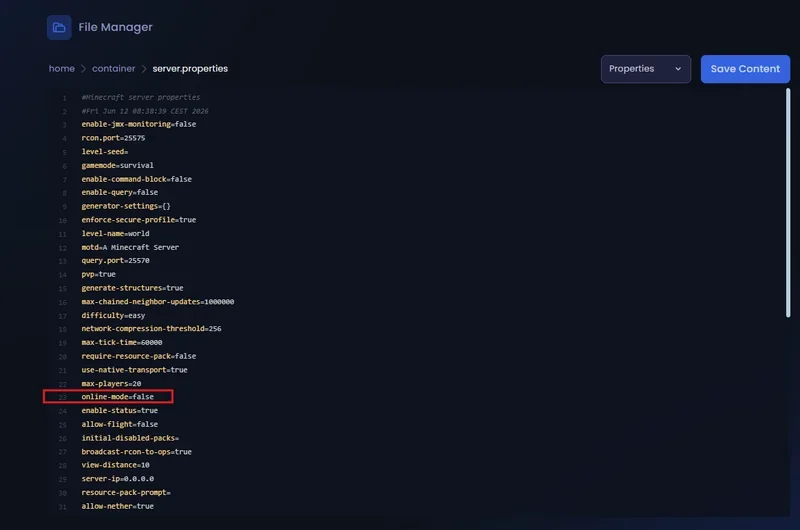
1. Disable the official check (server.properties)
This change is made in your server's main configuration file.
- Log in to your Winheberg gaming panel at
https://panel.winheberg.fr/ - Stop your server before editing the files, to avoid any overwrite on restart
- Open the
File managertab - Locate and open the
server.propertiesfile - Look for the network authentication line
online-mode=true
- Change the value to
false
online-mode=false
- Save with the save button or the Ctrl + S shortcut
2. Secure administrator access (mandatory)
As soon as online-mode=false is active, your server no longer controls account identity. A malicious user can rename themselves to match your username or a moderator's exactly, then connect with your administrator privileges (OP). Setting up local authentication is therefore not optional.
On Spigot, Paper or Purpur architectures, a local authentication gateway is required.
Option A, password with AuthMeReloaded
This is the most proven method to secure a player base in offline mode. Download AuthMeReloaded from its official page (SpigotMC) and drop the .jar file into your server's /plugins/ folder, then restart to generate its configuration.
On the first connection, the server freezes the player and requests a password.
/register <Password> <ConfirmPassword>
On later sessions, the player authenticates to unlock their inventory and interactions.
/login <Password>
Option B, hybrid login with FastLogin
To improve the experience for official accounts, add FastLogin (available on SpigotMC). The plugin detects whether the player connects from an official client. In that case, it validates the session in the background without asking for a password. If the player uses an unofficial launcher, FastLogin automatically falls back to AuthMeReloaded's local authentication.
3. Understanding the UUID trap (inventories and permissions)
This is the most common mistake when switching to offline mode. Each player is identified by a unique string called a UUID, and the source of that UUID changes depending on the mode.
In online mode, the UUID is provided by Mojang. In offline mode, it is computed locally from the player's username. These two UUIDs are different for the same player.
If your server was running in official mode and you switch it to offline mode, the server generates a new UUID for each player. Inventories, enderchests and ranks tied to the old UUID are then no longer recognized, which appears as data loss.
Preserving inventories
Player data is stored in /world/playerdata/ as .dat files named after the UUID. To keep an inventory after the mode change, rename the .dat file of the old official UUID with the player's new offline UUID. Always work on a backup copy, since a renaming mistake can make the data unreadable.
Preserving permissions
LuckPerms and most plugins also identify players by UUID. The same UUID change therefore affects assigned groups and permissions. After switching to offline mode, reassign groups to the affected players. For a network behind a proxy, set up IP forwarding so the backend servers receive a consistent UUID, which avoids this mismatch.
4. Restore skin display
In offline mode, clients no longer load appearance textures from Mojang's servers, and all players show up as Steve or Alex by default.
To give your players a visual identity back, install the free SkinsRestorer plugin (available on Modrinth or SpigotMC) into your /plugins/ folder.
Once configured, SkinsRestorer lets each player apply the skin of their choice through a command.
/skin <TargetAccountUsername>
5. Bedrock compatibility (GeyserMC and Floodgate)
If you use Geyser to welcome players on mobile, console and Windows to your Java server, offline mode needs special attention, because Bedrock players do not have an official Java account.
- Download the tools from the official GeyserMC page (
https://geysermc.org/download) and install Floodgate alongside GeyserMC - Open Floodgate's
config.ymlfile - Floodgate adds a prefix by default (the
.character) in front of Bedrock player names, which avoids username conflicts with Java players. You can adjust this prefix in the configuration
Special case, server networks (BungeeCord and Velocity)
On a network, online-mode=false applies only to the final game servers (Spigot, Paper). The proxy (BungeeCord or Velocity) handles authentication on its own, and IP forwarding must be enabled between the proxy and the backend servers. A final game server in offline mode must never be reachable directly from the outside without protection, otherwise the proxy can be bypassed.
Troubleshooting
❌ The "Invalid Session" message appears after the change
- The server was probably not fully restarted after editing
server.properties - Fully stop the instance from the panel, check the
online-mode=falseline, then restart - Make sure no duplicate
online-modeline remains in the file
❌ Some players lost their inventory or ranks
- The UUID change is the most likely cause, since the old identifier is no longer recognized
- Restore inventories by renaming the
.datfiles in/world/playerdata/to the new UUIDs - Reassign permission groups to the affected players through LuckPerms
❌ All players appear as Steve or Alex
- This is normal behavior in offline mode, since textures are no longer loaded from Mojang
- Install and configure SkinsRestorer to restore skins
- Ask players to apply their skin with the
/skincommand
Best practices
- Make a backup through the
Backupstab before changing the authentication mode - Install local authentication such as AuthMeReloaded before opening the server to the public
- Avoid offline mode on a pure Vanilla server, without an access protection plugin
- On a network, keep IP forwarding active to maintain consistent UUIDs across servers
- Protect your final game servers behind a firewall to prevent any direct access
- Test the authentication chain on a secondary account before announcing the opening
Need help?
If you notice reconnection anomalies or file write conflicts on your instances, our support team is here to analyze your logs. Open a ticket in the Technique department, set the relevant server in the Related Product field, and our team will assist you.
A controlled opening means a welcoming and well-protected server 🔒